
When you know roughly how many hours an assignment needs and when the work happens, auto forecasting creates the forecast for you. Enter the hours, the date range, and how the hours are spread on a Resource Assignment, and Resource Hero fills in the forecast when you save. For example, you can specify that a Project Manager will work 2 hours per day from May 1 through June 15.
An auto forecast is a baseline. Once it is in place, adjust individual days and weeks on the RH Matrix as the plan firms up.
Create an Auto Forecast
An auto forecast needs four values on the assignment:
| Field | What to enter |
|---|---|
| Auto Forecast Hours | The number of hours, for example 4 |
| Forecast Mode | How those hours are spread: Per Day, Per Week, Per Week (Workday Spread), Per Month, Per Month (Workday Spread), or Total. See Forecast Modes below |
| Start Date / End Date | The date range the hours cover |
Resource Hero creates the forecast when the assignment is saved with all four values filled in.
From the RH Manage Assignments Component
- Open the record, such as an RH Project or an Opportunity, and select the Manage Assignments tab.
- Click the + icon to add an assignment, or use a row that is already there.
- Enter the Auto Forecast Hours, select a Forecast Mode, and enter the Start Date and End Date.
- Click Save.

The four fields are columns in each field set that ships with the component. For more on adding and editing assignments, see The Manage Assignments Lightning Component.
From a Resource Assignment Record
- Open the Resource Assignment record and select the Details tab.
- In the Auto Forecast section, enter the Auto Forecast Hours, select a Forecast Mode, and enter the Start Date and End Date.
- Click Save.

A Worked Example
An assignment is saved with Auto Forecast Hours of 4, a Forecast Mode of Per Day, a Start Date of October 12, 2026 and an End Date of December 4, 2026. With a Monday to Friday work week, Resource Hero forecasts 4 hours on each of the 40 work days in the range. That is 20 hours a week and 160 hours in all.
To see the result, select the Forecasts tab on the record. The RH Matrix shows the assignment with its hours already in place.
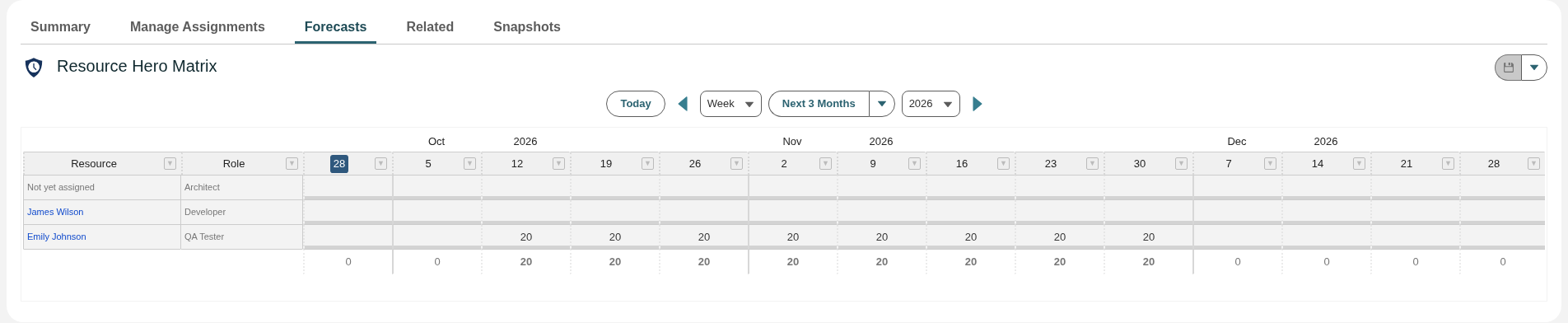
The same plan can be entered other ways. Over the same dates, 20 hours Per Week (Workday Spread) or 160 hours Total also forecasts 4 hours on each work day.
Forecast Modes
The Forecast Mode field controls where the Auto Forecast Hours land between the Start Date and the End Date. The calendar below shows the same 10 hours under each mode.
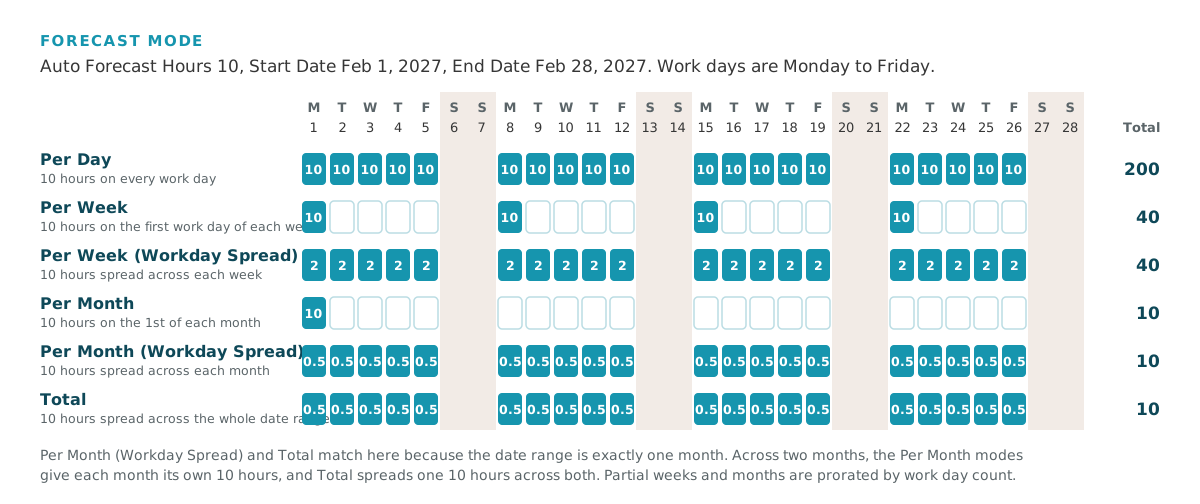
| Forecast Mode | Where the hours go |
|---|---|
| Per Day | The hours are forecast on each work day in the date range. |
| Per Week | The hours are forecast on the first work day of each week. |
| Per Week (Workday Spread) | The hours are evenly distributed across the work days of each week. Partial weeks are prorated by work day count. |
| Per Month | The hours are forecast on the first day of each month. |
| Per Month (Workday Spread) | The hours are evenly distributed across the work days of each month. Partial months are prorated by work day count. |
| Total | The hours are evenly distributed across all work days in the date range. |
Work days come from the Start of Week and Days in Work Week settings for your org. See Change org-wide Resource Hero configuration settings.
Partial Weeks and Months
Per Week and Per Month put the hours on a single day: the first work day of the week, or the first day of the month. A week or month receives hours when that day falls inside the date range, so start the range on that day to include the first week or month.
The two Workday Spread modes prorate a partial week or month by its work days, so each work day receives the same hours it would in a full week or month. For example, 10 hours Per Week (Workday Spread) is 2 hours a day in a five-day work week, so a week with three work days inside the range receives 6 hours.
Spread hours are calculated to two decimal places, and any remainder goes on the last work day of the week, month, or date range. For example, 10 hours Total across three work days forecasts 3.33, 3.33, and 3.34.
Change an Existing Auto Forecast
Resource Hero recalculates the forecast when you change the Auto Forecast Hours, Forecast Mode, Start Date, or End Date on an assignment and save. Every day in the new date range is overwritten, including hours entered by hand on the RH Matrix. Forecasts dated outside the new range stay as they are.
For example, moving the End Date in the example above from December 4 to November 20 recalculates October 12 through November 20. The hours already forecast for November 23 through December 4 stay in place.
To overwrite those as well, select Overwrite All Existing Forecasts before you save. Resource Hero then overwrites every forecast on the assignment, inside and outside the date range, and clears the checkbox once the save is complete. Selecting the checkbox and saving also rebuilds the forecast when none of the four values has changed.
The Overwrite All Existing Forecasts checkbox is in the Auto Forecast section of the Resource Assignment record. To use it in the RH Manage Assignments component, add it to the component’s field set. See Add fields to the Manage Assignments component.
Updating Forecast Mode, Start Date, End Date, or Auto Forecast Hours will overwrite existing forecasts within the new date range. Ensure that only authorized users have access to these fields as the potential for data loss is high.
Data Model
The auto forecast fields are on the Resource Assignment object. The forecast they create is stored as Resource Forecast records on the assignment.
| Field | API Name | Type | Description |
|---|---|---|---|
| Start Date | Start_Date__c | Date | The start of the auto forecast date range. |
| End Date | End_Date__c | Date | The end of the auto forecast date range. |
| Auto Forecast Hours | Auto_Forecast_Hours__c | Number | The number of hours to distribute across the date range based on Forecast Mode. |
| Forecast Mode | Forecast_Mode__c | Picklist | Determines how Auto Forecast Hours are distributed between Start Date and End Date. |
| Overwrite All Existing Forecasts | Overwrite_All_Existing_Forecasts__c | Checkbox | When checked, overwrites all existing forecasts including those outside the new date range. Clears itself when the assignment is saved. |

