
A resource is booked for more hours on a day than they have. Maybe they took time off, a company holiday landed on a planned day, or another project’s forecast overlaps yours. Resolve conflicts finds every such day and moves this record’s hours forward to the next days the resource has free capacity.
Only this record’s hours move, and only later in time. Each assignment’s total stays the same. Other projects, holidays, and time off are never changed.
Resolve conflicts is a tab in the RH Toolkit. Open an RH Project or Opportunity, click RH Toolkit, and select Resolve conflicts.
Find the conflicts
Enter a From Date. It defaults to today. Only days on or after it are checked or changed.
A day is over capacity when everything booked on it is more than the resource’s capacity. That includes this record, other projects, holidays, and time off. A half day off leaves half a day of room.
Capacity comes from the resource’s RH Capacity records. A resource without them uses its weekly target maximum spread over the work week, and its note says so.
The preview writes nothing, so you can also use this tab just to see where the team is overbooked.
Read the preview
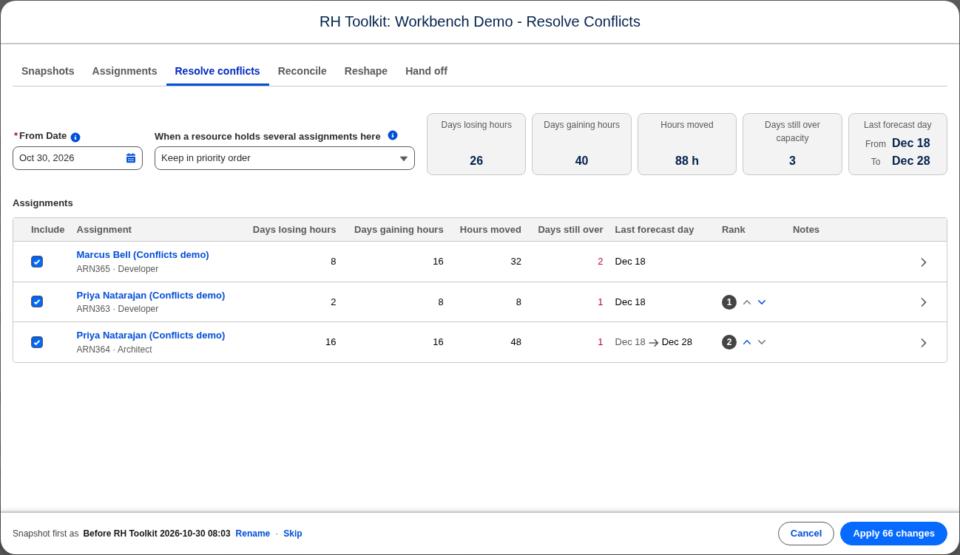
The boxes across the top sum up the run:
- Days losing hours and Days gaining hours
- Hours moved
- Days still over capacity after the run
- Last forecast day, and how far it moves
The table lists each assignment with the same figures, plus Notes. Assignments with conflicts are listed first.
Click an assignment to see its days. Each bar shows everything booked on the resource that day, stacked against its capacity line: holidays, time off, other bookings, and this assignment. Hours coming off a day are marked in red and hours landing are marked in green. Bookings on records you cannot see are shown as “Other assignments” and never named.

A day that is over capacity only because of other projects is listed, but nothing on this record moves.
An example
A resource has 8 hours of capacity a day. Another project books 2 hours every day. Your project has 8 hours a day for two weeks, and a company holiday falls on the first Wednesday. Every day is over capacity. Resolve conflicts takes 2 hours off nine days and 8 hours off the holiday, 26 hours in all. They land the following week on days with 6 hours free. The assignment still totals 80 hours.
When one person has several assignments
When a resource holds more than one assignment on the record, choose how they share a full day under When a resource holds several assignments here:
- Keep in priority order (default): the first assignment in rank keeps its hours, and the next takes the free capacity left. Use the arrows in the Rank column to change the order. By default, the assignment that ends soonest ranks first.
- Split free capacity evenly: each assignment keeps an equal share of the day’s free capacity.
This option appears only when a resource has more than one assignment on the record.
Leave a day as it is
In an assignment’s day view, each day that gives up hours has a checkbox, on by default. Turn one off to keep that day’s hours where they are, then click Recalculate. The run works around the kept day. If the kept hours leave the resource over capacity, the day counts in Days still over capacity.
When there is no room
Resolve conflicts looks for free capacity up to 12 months past the assignment’s last forecast date. Hours that find no room by then stay on the days they came from. Those days stay over capacity, and the note reads, for example, “Can’t move 8 hours; no free capacity.” To fix it, add capacity, move work on another project, or hand the hours to someone else with Hand off. ## Apply
Check the snapshot sentence in the footer, then click Apply. Only this record’s forecast is written.

