
Enhanced Holiday Schedules allow you to define company-wide holidays and easily assign them to your Resources. Create multiple holiday schedules for different employee groups, such as full-time vs. part-time or by region, and assign one or more schedules to each resource using Holiday Schedule Assignments.
With specific start and end dates on each assignment, you have precise control over when holidays apply. Holidays are automatically reflected on resource timesheets and availability, with no manual entry required.
This article covers the Enhanced Holiday Schedule model, where schedules are assigned through Holiday Schedule Assignments. If your resources still use the Holiday Schedule field on the Resource record, see Legacy vs. Enhanced Holiday Schedule Model to compare the two models and plan your transition.
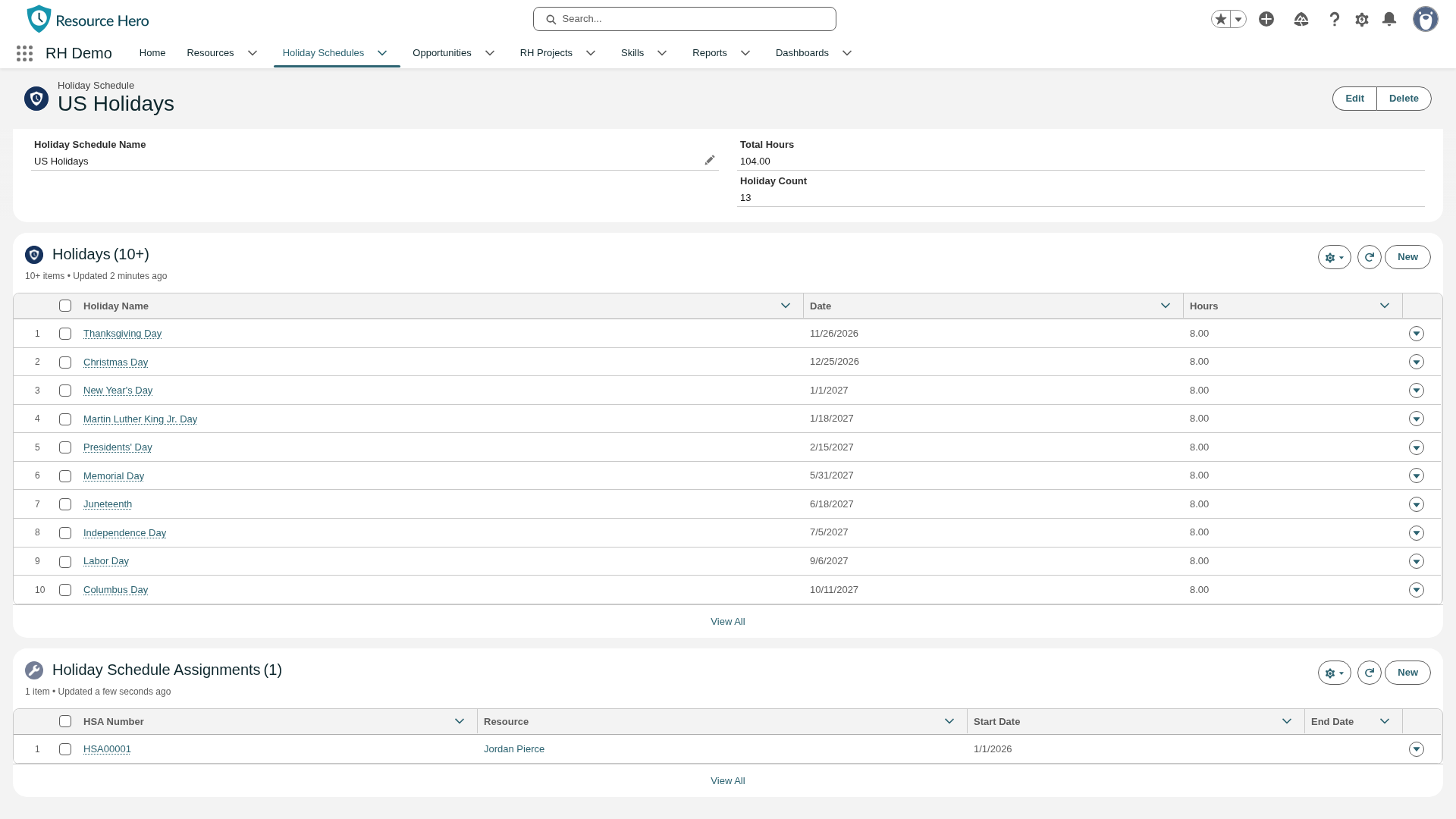
Create and assign Holiday Schedules to your Resources
Before creating and assigning holiday schedules, ensure you have the appropriate access: your user must be assigned the Resource Hero – Holiday Administrator permission set, or you must have the equivalent permissions through custom profile/permission set configuration.
See the Resource Hero Permission Sets support post for details.
Creating a Holiday Schedule
- Select the Holiday Schedules tab
- Click New
- Enter a descriptive name for the schedule (e.g., “US – Full Time”, “UK Holidays”, “EMEA Region”)
- Click Save
Adding Holidays to a Schedule
Once you’ve created a schedule, add individual holidays:
- Open the Holiday Schedule record
- In the Holidays related list, click New
- Fill in the holiday details:
- Holiday Name: The name of the holiday (e.g., “Christmas Day”, “Independence Day”)
- Date: The date of the holiday
- Hours: The number of hours for this holiday (typically 8 for a full day). This can instead be derived from each resource’s capacity, see Basing Holiday Hours on Resource Capacity below.
- Click Save
- Repeat for each holiday in the schedule
You can load Holidays in bulk using Salesforce’s Data Import Wizard. For detailed instructions and information about bulk loading holidays, see Bulk Loading Holidays and Holiday Schedule Assignments.
Creating a Holiday Schedule Assignment
You can create assignments from either the Resource record or the Holiday Schedule record:
From a Resource Record:
- Open the Resource record
- Select the Holiday Schedules tab
- Click New on the Holiday Schedule Assignments related list
- The Resource field will be pre-populated
- Select the Holiday Schedule to assign
- Set the Start Date and End Date for when this assignment is effective
- Click Save
From a Holiday Schedule Record:
- Open the Holiday Schedule record
- Scroll to the Holiday Schedule Assignments related list
- Click New
- The Holiday Schedule field will be pre-populated
- Select the Resource to receive this schedule
- Set the Start Date and End Date for when this assignment is effective
- Click Save
You can load Holiday Schedule Assignments in bulk using Salesforce’s Data Import Wizard. For detailed instructions and information about bulk loading holidays, see Bulk Loading Holidays and Holiday Schedule Assignments.
Date Ranges
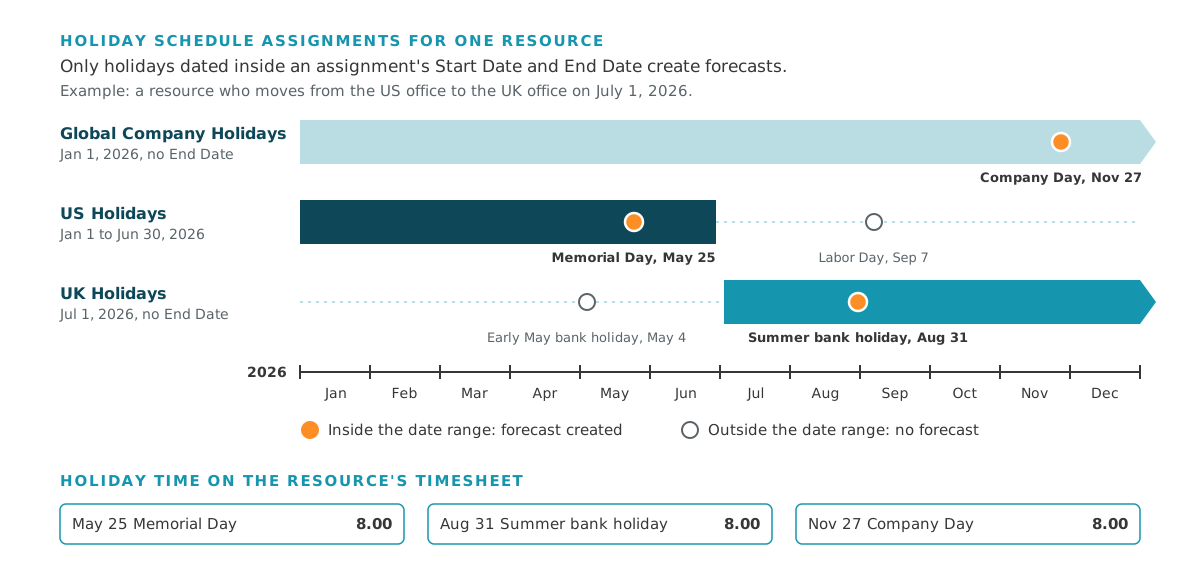
The date range on each holiday schedule assignment controls which holidays are applied:
- Only holidays with dates falling between Start Date and End Date (inclusive) create forecasts
- Changing the date range automatically reconciles forecasts – adding new ones or removing ones that no longer apply
- Leaving End Date blank means the assignment applies indefinitely
How Holidays Appear on Timesheets
On creation, the system automatically creates Resource Forecast records for each holiday within the date range. These forecasts appear on the resource’s timesheet in the RH Matrix under the Holiday Time assignment. Holiday time reduces the resource’s available capacity for that day and no manual entry is required.

Holiday dates are calendar dates and are not adjusted for timezone differences. For example, a holiday set for December 25 will appear on December 25 for all resources regardless of their location.
Basing Holiday Hours on Resource Capacity
By default, every resource on a schedule receives the same holiday hours: the flat Hours value on the Holiday record (typically 8). You can instead have holiday hours reflect each resource’s actual RH Capacity for that date, so a part-time resource with a 5-hour day receives a 5-hour holiday instead of the full-time default. This also prevents part-time resources from showing false overtime on the RH Matrix.
Turn this on in two ways:
- Org-wide: Enable Use Resource Capacity For Holiday Hours in RHA Settings. See Change org-wide Resource Hero configuration settings.
- Per resource: Set Holiday Hours Source on the Resource record to Resource Capacity or Fixed Holiday Hours to override the org setting in either direction. Leave it blank (or Use Org Default) to follow the org setting.
Changing these settings does not recompute holiday forecasts that already exist. New holiday forecasts pick up the correct hours as soon as they’re created, and two scheduled jobs keep existing forecasts in sync automatically: a reactive job runs hourly after capacity edits, and a full reconcile runs nightly. To apply changes immediately instead of waiting, see Resync holiday hours to resource capacity.
Data Model
To see how the objects on this page relate to each other, view Data Model: Holiday Schedules.
Enhanced Holiday Schedules use three objects: Holiday Schedule, Holiday and Holiday Schedule Assignment. Each assignment links one schedule to one resource for a date range, and Resource Hero creates the Holiday Time forecasts from it.

