
Someone is rolling off the project, going on leave, or sharing their load with a new colleague. Hand off moves their forecast for a period to another assignment on the same record. Hours before the period, hours after it, and every actual hour stay with the person who had them.
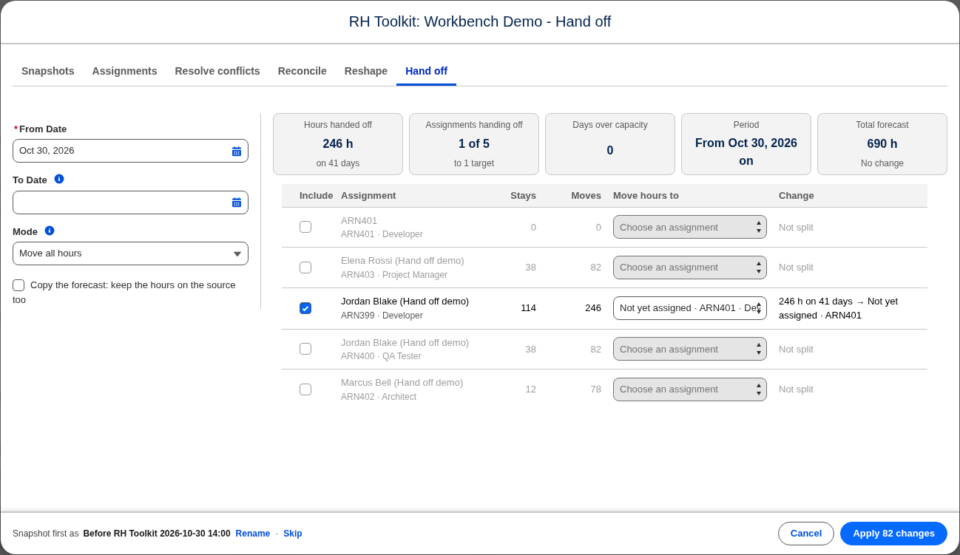
Hand off is a tab in the RH Toolkit. Open an RH Project or Opportunity, click RH Toolkit, and select Hand off.
Before you start
The hours go to an assignment that already exists on the record. It can be another team member’s assignment, or a placeholder assignment with no resource yet. To hand hours to someone new, add their assignment first on the Assignments tab, using Find Resource if you need to.
Hand off hours
- Enter a From Date. Forecast before it stays where it is.
- Optionally, enter a To Date. Leave it blank to move every date from the From Date on.
- Choose a Mode (see below).
- In the table, select each assignment to hand off. Nothing moves unless you select it.
- For each selected row, choose an assignment under Move hours to.
- Check the preview, then click Apply.
Several assignments can hand off to the same target. Each selected row has one target. To split one person’s hours between two people, hand off part of each day to one target, then run Hand off again for the rest.
Choose how much moves
| Mode | What moves |
|---|---|
| Move all hours (default) | Every forecast hour in the period. |
| Move up to a set hours a day | At most the Hours a day, at most you enter. Anything above that stays with the source. |
| Move a share of each day | The Percent of each day you enter. The rest stays with the source. |
| Move what fits the target’s capacity | Only what the target’s resource has free each day, after holidays, time off, and other bookings. The rest stays with the source. |
Turn on Copy the forecast: keep the hours on the source too to give the target the same hours while the source keeps theirs. Use it for a shadowing or overlap period. A copy adds hours to the record, so Total forecast in the summary shows how much the record’s total rises.
Check the target’s capacity
The preview warns when the target’s resource would end up over capacity:
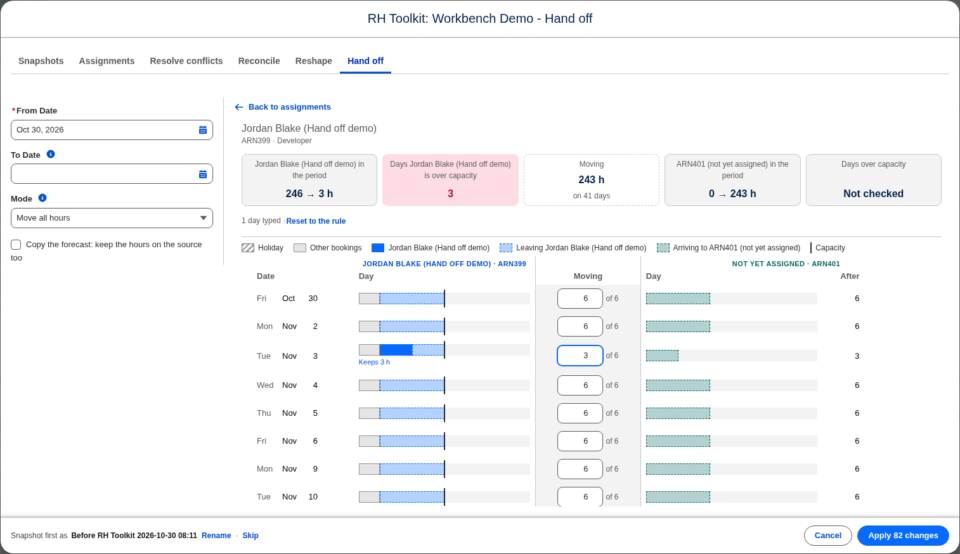
- Days over capacity in the summary counts those days.
- The row’s note names the resource, for example “Jordan Lee would be over capacity on 5 days.”
- In the day view, each of those days is tagged with how many hours over it is.
The warning does not stop Apply. To move only what fits, choose Move what fits the target’s capacity. A placeholder assignment with no resource has no capacity to check.
Adjust a single day
Click a row to open its days side by side: the source’s day, the hours Moving, and the target’s day, each against its resource’s capacity. Type over the Moving figure on any day to move a different amount. Enter 0 to leave the day with the source. Click Recalculate after typing. Click Reset to the rule to put every typed day back.
An example
Priya is forecast at 8 hours a day for four weeks, 160 hours in all. She rolls off after week two, and her last two weeks go to a placeholder assignment until her replacement is staffed. Select Priya’s assignment, choose the placeholder under Move hours to, set the From Date to the first day of week three, and keep Move all hours. The preview shows 80 hours that stay with Priya for weeks one and two, and 80 hours that move. If Priya logged hours on the From Date, those actuals stay with her, and only her forecast for that day moves.
What Hand off does not change
- Actual hours.
- Forecast before the From Date or after the To Date.
- Assignment start and end dates.
- Archived and read-only assignments, which are not offered as a source or a target.

