
Sometimes the plan’s shape is wrong, but the past doesn’t need reconciling. The project slipped two weeks. A change order adds 40 hours. Someone should be on the project at half time for October. Reshape changes the plan for each of these cases without touching actual hours.
Reshape is a tab in the RH Toolkit. Open an RH Project or Opportunity, click RH Toolkit, and select Reshape. Pick one of three modes from the Mode list. Reshape opens on Set hours.
| Mode | Use it when | Assignment total |
|---|---|---|
| Set hours | You want a set number of hours, or a share of capacity, over a date range | Changes |
| Shift | The work moved later or earlier | Stays the same |
| Set remaining total | The budget changed for one or more assignments | Changes to what you enter |
Set hours
Set hours replaces the forecast between two dates with hours spread the way you choose. The choices are the same as the Forecast Mode field on an assignment.
- Select a Distribution.
- Enter the hours, or the percent of capacity.
- Enter a From Date and a To Date. Both are included, and they can be in the past or the future.
- Select the assignments to change in the table.
| Distribution | What it places |
|---|---|
| Percent of Capacity (default, 100) | A share of the resource’s total capacity on each day in the range |
| Per Day | The hours on every workday |
| Per Week | The hours on the first day of each week |
| Per Week (Workday Spread) | The hours spread evenly over each week’s workdays |
| Per Month | The hours on the first day of each month |
| Per Month (Workday Spread) | The hours spread evenly over each month’s workdays |
| Total | The hours spread evenly over every workday in the range |
| Per Day of Week | A number of hours for each day of the week, repeated across the range |
The range is replaced, not added to, so a day can lose hours as well as gain them. Days outside the range stay as they are. Turn on Replace all existing forecasts to also clear every forecast outside the range, past dates included. Actual hours are always kept.
For example, to put Sam on a project at half time for October, select Percent of Capacity, enter 50, and set the dates to October 1 and October 31.
Set hours does not check capacity, holidays, or time off. A day can end up over capacity. Run Resolve conflicts afterwards to move the extra hours.

Assignments that auto-forecast
An assignment with a Forecast Mode rebuilds its forecast whenever someone changes its Forecast Mode, Start Date, End Date, or Auto Forecast Hours. The rebuild replaces the forecast between its Start Date and End Date, including what Set hours placed there. These assignments carry a note in the preview, and a notice counts them. The toolkit does not change the assignment’s settings.
Shift
Shift moves every remaining forecast later or earlier, keeping its shape exactly.
- Enter a From Date. Only forecast on or after it moves.
- Under Shift the forecast by, enter a number. A positive number moves the forecast later and a negative number moves it earlier.
- Select Weeks or Workdays. Weekends are not counted.
The total stays the same and the last forecast day moves by the shift. One shift applies to every selected assignment. To shift assignments by different amounts, run Shift once for each amount.
Shift moves hours without looking at the calendar, so hours can land on a holiday, time off, or a full day. Run Resolve conflicts afterwards to move them.
A shift that would move hours to before the From Date is refused for that assignment, and its note says so.
Set remaining total
Set remaining total re-baselines one or more assignments. Use it for a change order or a budget cut.
- Enter a From Date. The remaining total is everything on or after it.
- In the table, type either the Change or the new Remaining after for each assignment. The other column fills in, and the row is selected. Rows you leave blank stay as they are.
- Under Reach the new total by, choose how the difference is placed.
| Option | What it does |
|---|---|
| Fill open capacity (default) | Adds the difference to the earliest days with free capacity. A lower total is trimmed from the end. |
| Extend at plan’s pace | Keeps the plan as drawn and adds the difference after the last forecasted day, at the pace the plan ends at. A lower total is trimmed from the end. |
| Extend at set hours per workday | The same, at the Hours per workday you enter. |
| Scale existing | Keeps the end date and scales every remaining day by one factor. |
Zero clears the assignment’s remaining forecast. Added hours never take a day past the resource’s free capacity.
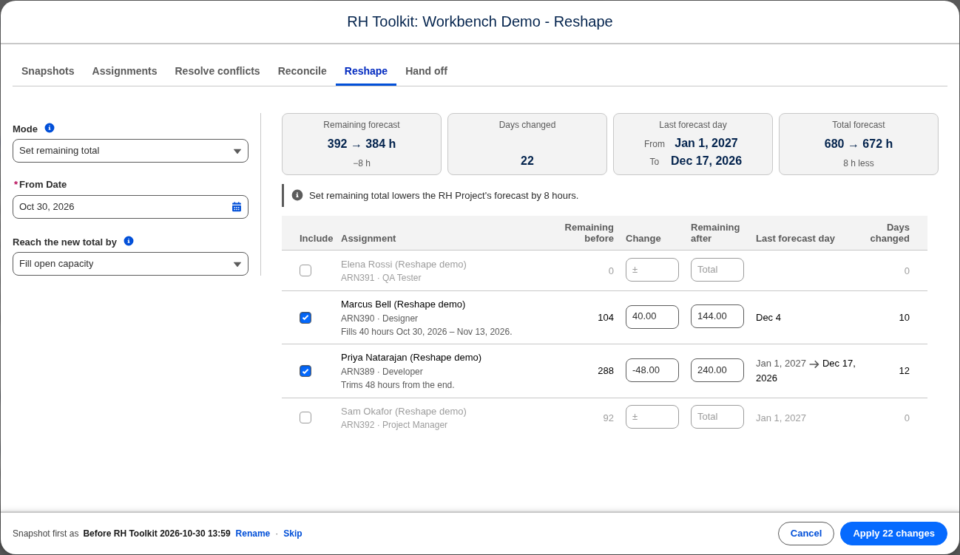
Read the preview and apply
The cards across the top sum up the run, and Total forecast shows the effect on the whole record. Click an assignment to see its days, with a bar for each day showing what is booked against the resource’s capacity.
Check the snapshot sentence in the footer, then click Apply. Reshape never changes actual hours and does not change the record’s RH Last Reconcile Date.

