
The plan said 8 hours a day, and the team logged 6. Or they logged 10. Reconcile makes the past match what actually happened and decides where the difference goes. Every day in the period takes its actual hours as its forecast, so forecast to date equals actual to date. The leftover, called the balance, either moves into the remaining plan or is dropped, depending on the mode you pick.
Run it on a regular rhythm, such as every Monday. Each run picks up from where the last one ended.
Reconcile is a tab in the RH Toolkit. Open an RH Project or Opportunity, click RH Toolkit, and select Reconcile.
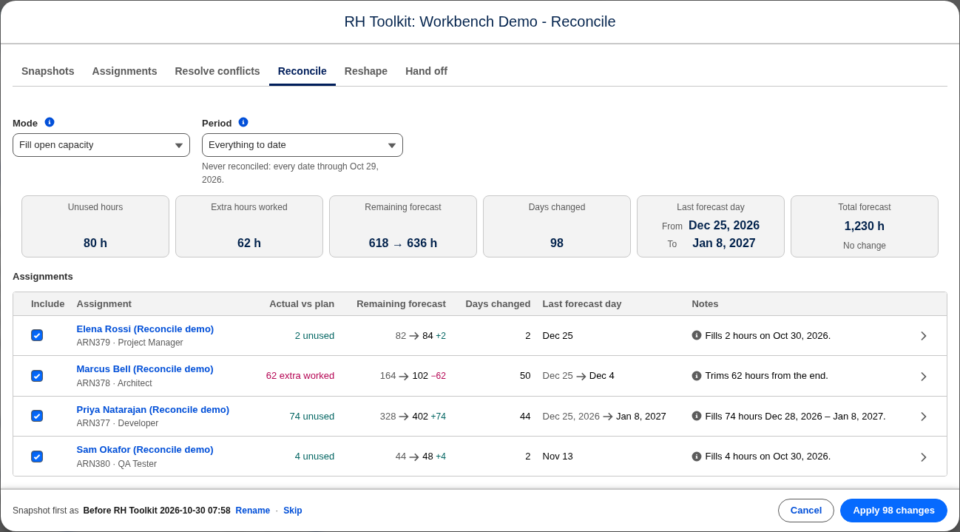
Choose the period
The Period list decides which past days are reconciled. The last day is yesterday by default, because today’s actuals are usually not all in yet.
- Since last reconciled covers the days after the record’s last reconcile through yesterday. It appears only when the record has been reconciled before, and it is selected by default.
- Everything to date covers every date through yesterday. It is the default on a record that has never been reconciled. Because this rewrites the record’s whole history to actuals, the toolkit asks you to confirm before it applies.
- Custom shows a From Date and a To Date so you can set the days yourself. Both dates are included. Leave the From Date blank to reconcile every date through the To Date.
For Since last reconciled and Everything to date, a line under the Period confirms the dates, for example “Oct 20 – Oct 28. Last reconciled through Oct 19.” Under Custom, the From Date and To Date show them instead.
After you apply, the record’s RH Last Reconcile Date is set to the last day reconciled, and the next run starts from the day after.
A To Date after today is allowed under Custom, but days after today have no actuals yet. Reconcile treats their forecast as unused hours.
Choose what happens to the balance
The Mode list decides where unused hours go, or where extra hours worked come from. The default is Fill open capacity.
| Mode | Unused hours | Extra hours worked | Assignment total | Last forecast day |
|---|---|---|---|---|
| Fill open capacity | Added to the earliest days after the period with free capacity. The remaining plan fills up first; days are added after it only when it has no room left. | Trimmed from the end. | Stays the same | Moves only when the plan has no room |
| Extend at plan’s pace | Kept as drawn, with the balance added after the last forecasted day at the pace the plan ends at. | Trimmed from the end. | Stays the same | Moves later or earlier |
| Scale existing | Every remaining day is multiplied by one factor, so the plan’s shape is kept. Days at zero stay at zero. | Same, with a factor below one. | Stays the same | Stays the same |
| Write off | Dropped. The remaining plan is kept as drawn. | Dropped. | Falls by the unused hours, or rises by the extra | Stays the same |
| Close out | Dropped, and every forecast after the period is removed. Use it when the work is done. | Dropped. | Falls to the hours delivered | Moves back to the last day worked |
Where hours are added, a day never takes more than the resource has free. Free capacity is the resource’s capacity less everything already booked that day: other projects, holidays, and time off. A full-day holiday has no room, so nothing lands on it. When one resource has two assignments on the record, the first one placed takes the day and the next moves on.
The plan’s pace is the average of the last five forecasted days with hours.
An example
An assignment is forecast at 8 hours a day for four weeks, 160 hours in all. After two weeks, the resource has logged 6 hours a day: 60 hours against 80 planned, so 20 hours are unused. You reconcile through the end of week two.
- Fill open capacity, with 10 hours of capacity a day: each remaining day goes from 8 to 10. The end date does not move, and the total stays at 160.
- Extend at plan’s pace: the remaining days stay at 8, and the 20 hours land on the next Monday, Tuesday, and Wednesday at 8, 8, and 4.
- Scale existing: each remaining day becomes 10.
- Write off: the remaining days stay at 8, and the total falls to 140.
- Close out: the remaining days are removed, and the total falls to 60.
Read the preview
The cards across the top sum up the run:
- Unused hours and Extra hours worked, kept apart so they don’t cancel out.
- Remaining forecast after the period, before and after the run.
- Days changed and Last forecast day.
- Total forecast for the whole record. When the record has a snapshot, this card also shows how far the total is above or below it.
The table lists each assignment with Actual vs plan, Remaining forecast, Days changed, Last forecast day, and Notes. A note explains anything worth knowing, for example “Fills 20 hours Mar 16, 2026 – Mar 27, 2026.” or “Capped 6 days at capacity.”
See an assignment’s days
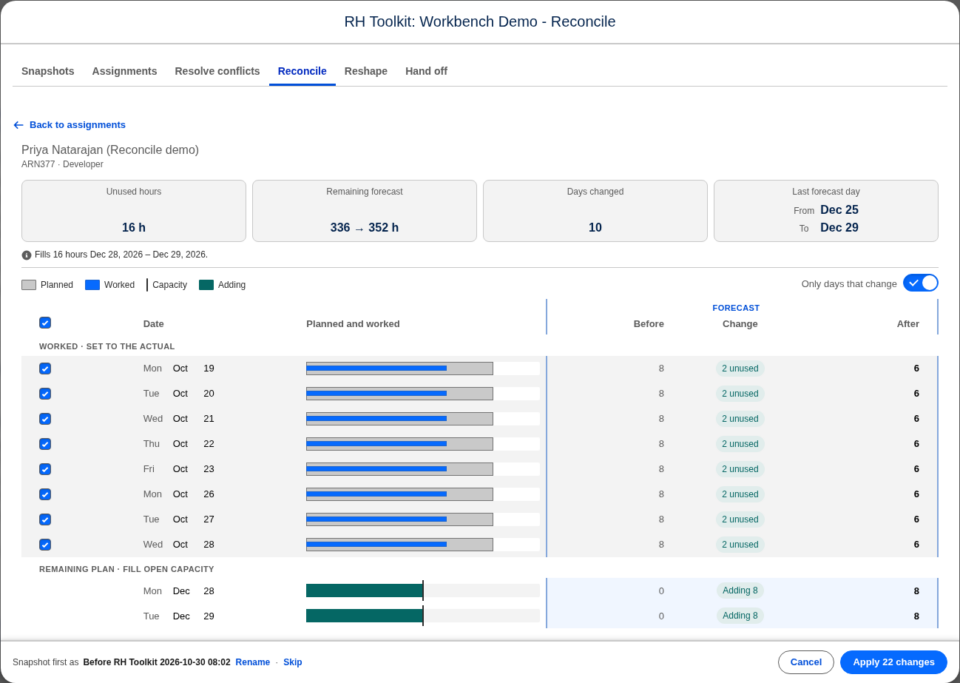
Click an assignment to see its days in two parts:
- Worked · set to the actual lists the days in the period. Each bar shows the hours planned as a grey band and the hours worked as a blue bar inside it. Extra hours worked run past the band in red. A chip says whether the day had unused hours, extra hours worked, or matched the actual.
- Remaining plan lists the days after the period. Each bar shows everything booked on the resource that day against its capacity line, with the hours being added in green and the hours being removed in red.
Hover over a bar to see the hours. Point at an entry in the key above the table to highlight just that part of every bar. Only days that change is on by default. Turn it off to see every day.
Leave a day as it is
Each day the run would change has a checkbox, on by default. Turn one off to leave that day alone:
- A past day keeps its forecast instead of taking its actual, so its unused or extra hours are not moved.
- A remaining day keeps its hours, and the run places the balance around it.
Click Recalculate to redraw the plan. The assignment’s row then shows how many days are left as is.
Apply
Check the snapshot sentence in the footer, then click Apply. The record’s RH Last Reconcile Date is set to the last day reconciled.
Things to know
- No actuals on a past day means an actual of zero, so the whole forecast for that day counts as unused.
- No capacity records: Fill open capacity extends at the plan’s pace instead, and the note says so.
- Actuals over the whole forecast: when an assignment has already logged more than its total forecast, its remaining forecast goes to zero. A notice says how many hours over it is. If the work continues, add the hours with Reshape → Set remaining total.
- No room within a year: if the balance does not fit in the resource’s free capacity within 12 months of the last forecast, nothing changes on that assignment. Its note says how many hours do not fit. Lower the hours, change the mode, or add capacity.
- Nothing to scale: Scale existing on an assignment with no remaining forecast fills open capacity instead.

