
If you are still using the earlier Visualforce version of the matrix, the Matrix Lightning Web Component is the current version, and it does several things the earlier one cannot.
- Column totals resolve along the bottom as you type, so you can see what a plan adds up to per week before you save, without exporting anything or building a report.
- Anchor dates jump the view where you need it, straight to today or to a project’s start or end date, instead of paging through months to find the right window.
- You configure it per page in Lightning App Builder: sort order, which fields appear as row headers, which numeric field it edits, the default view and time range. On the Visualforce version all of that is fixed inside the Visualforce page itself.
Switching is a page change. Your data does not move, nothing is rebuilt, and no records are touched. You add one component to a Lightning record page, set its properties, and remove the old one.
Before You Start: Lightning Web Security
The RH Matrix runs on a JavaScript grid that Lightning Web Security makes viable, so the setting has to be on before the component will work.
- Click the gear icon in the top-right of Salesforce and select Setup.
- In Quick Find, enter
Session Settings, then select Session Settings. - Find Lightning Web Security and confirm Use Lightning Web Security for Lightning web components and Aura components is checked.

Read that setting’s label carefully. It is not scoped to the RH Matrix, or even to Lightning web components. It changes the security architecture for every custom Lightning component in your org, Aura components included. It is an org-wide change that happens to be a prerequisite for one component.
Enable it in a sandbox first and exercise your custom components there rather than turning it on in production to install one feature. Salesforce’s LWS Console and scanner are the right tools for assessing the impact in your org.
Which Matrix Am I On?
To confirm whether a page is currently displaying the Legacy Visualforce Matrix or the Matrix Lightning Web Component:
- Open any record or page that shows the matrix.
- Click the gear icon and select Edit Page.
- Click the matrix on the canvas.
A panel headed Visualforce, with nothing in it but a page name and a height, means you are on the legacy version. A panel headed RH Matrix, with Matrix Type, View By, Sort By and the rest, means you have already migrated.

If you would rather not open Setup, there is a quicker tell: the Save button moved sides. On the legacy matrix the floppy disk icon sits at the far left of the toolbar. On the RH Matrix it sits at the top right.
Switch the Component on the Record Page
- Open the Page in Lightning App Builder. From a record page currently showing the earlier Visualforce version, click the gear icon and select Edit Page.
- Select the Visualforce Component. Click the Visualforce component on the canvas. Its properties panel shows its entire configuration: a page name and a height.
- Insert the RH Matrix.
- In the Components panel on the left, search for
RH Matrix. It appears under Custom – Managed. - On the canvas, use the Insert a component before or Insert a component after button next to the Visualforce component, and select RH Matrix.
- In the Components panel on the left, search for
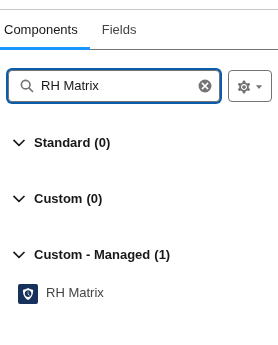
Both matrices are now on the page:

As an alternative, drag the component from the palette directly onto the canvas.
- Configure the RH Matrix. The component arrives with sensible defaults. Adjust them to mirror what your Visualforce matrix shows on screen, since its settings live inside the Visualforce page itself rather than on the component.
| Property | Default it arrives with |
|---|---|
| Default ViewBy / Time Range | Week – Next 3 Months |
| Matrix Enabled Field | Forecast |
| Sort By Field / Order | Assigned To, ASC |
| Component Max Height | 300 |
| Notes Panel | Default Closed |
| Show Grand Total Row | Checked |
Two optional extras. Show Grand Total Row is on by default and adds live column totals along the bottom. Anchor Date Field Set is blank by default and drives the anchor date control, which jumps the view to today or to a date on the parent record. You do not need to build a field set for it: select the packaged Default Anchor Dates field set on Resource Assignment, which offers Today, the RH Project start and end dates, the assignment’s own start and end dates, and the related Opportunity close date.
View the full list of configuration options on the Matrix Lightning Web Component support post.
- Remove the Visualforce Component. Select the Visualforce component and delete it from the page. This only removes the component from this page and does not delete the underlying Visualforce page from your org.
- Save and Activate. Click Save, then Activation if the page is not already assigned. Assign it to a single app first if you want to roll out gradually. Because assignment is per app, form factor, record type and profile, you can leave the rest of your org on the earlier version and compare.
- If the record page does not change after you activate, check the app’s own assignment: an App Default page beats an Org Default one.
- Verify. Open the record page again. The RH Matrix should render with your existing data. Depending on how you configured it in step 4, you may also see a Today button in the toolbar and a totals row along the bottom.

If the page still shows the earlier version, the assignment did not take. Confirm which component the page is rendering using the App Builder check above.
Repeat the procedure for each record page that hosts a matrix.

