
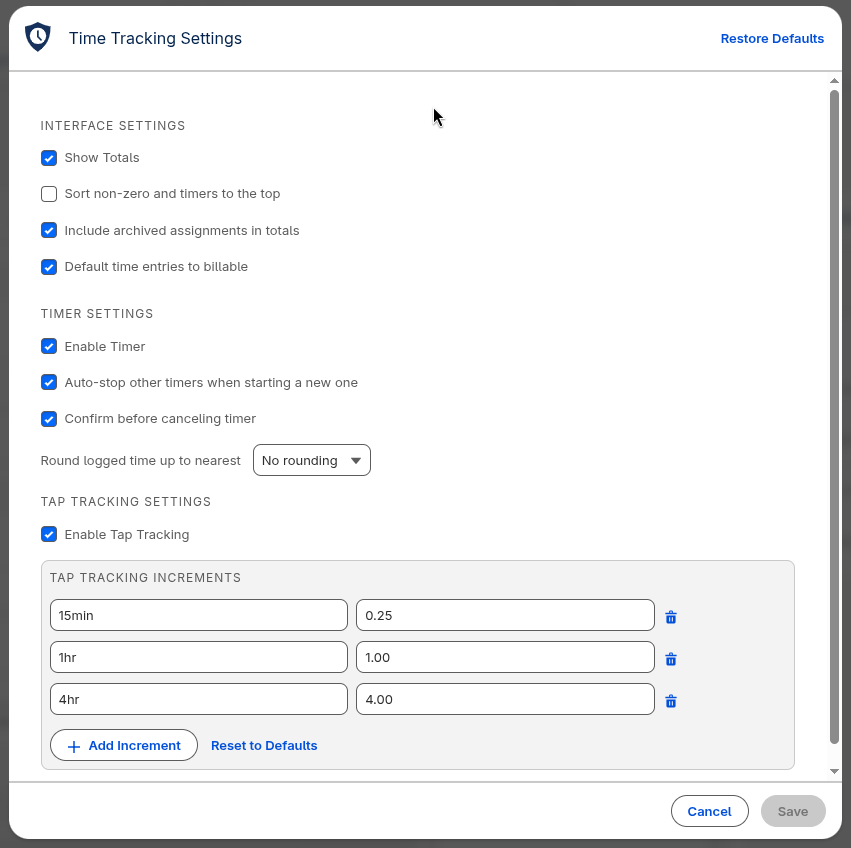
The Time Tracking Settings modal provides user-configurable preferences that customize the Enhanced Time Tracking Component interface. Each user’s settings are saved individually and persist across sessions.
Accessing Settings
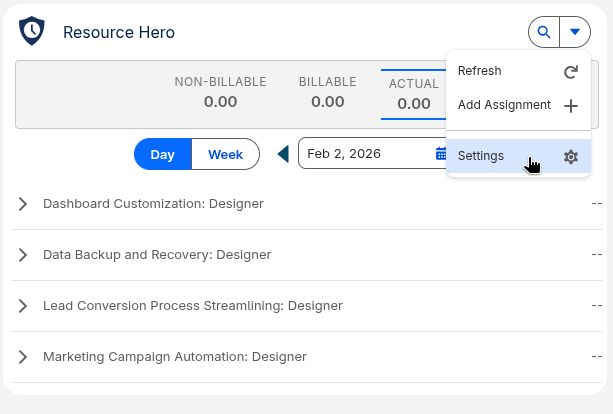
Click the gear icon in the Time Tracking component’s header menu to open the Settings modal.
Interface Settings
These settings control the overall appearance and behavior of the Time Tracking component.
| Setting | Description | Default |
|---|---|---|
| Show Totals | Display the totals dashboard at the top of the component | On |
| Sort non-zero and timers to the top | Move assignments with tracked time or active timers above assignments with no activity | Off |
| Include archived assignments in totals | Include hours from archived assignments in the totals calculations | On |
| Default time entries to billable | Set the billable toggle to “on” by default when creating new time entries | On |
Multi-Currency Display
For organizations with multi-currency enabled, an additional setting controls how currency values appear in the totals dashboard:
| Setting | Description | Options |
|---|---|---|
| Display currency totals in | Choose which currency to use for displaying totals | Organization Default, My Default Currency, Current Record Currency |
Timer Settings
These settings control the behavior of the real-time timer feature.
| Setting | Description | Default |
|---|---|---|
| Enable Timer | Show timer controls on each assignment row | On |
| Auto-stop other timers when starting a new one | Automatically pause any running timer when you start a new one | On |
| Confirm before canceling timer | Show a confirmation dialog when discarding a timer | On |
| Round logged time up to nearest | Automatically round committed timer hours to the nearest increment | No rounding |
Time Rounding Options
When committing timer hours, you can have the system automatically round up to the nearest increment:
| Option | Effect | Example |
|---|---|---|
| No rounding | Exact time is logged | 7 min = 0.12 hrs |
| 5 minutes | Round up to 5-min increments | 7 min = 0.17 hrs (10 min) |
| 10 minutes | Round up to 10-min increments | 7 min = 0.17 hrs (10 min) |
| 15 minutes | Round up to 15-min increments | 7 min = 0.25 hrs (15 min) |
| 30 minutes | Round up to 30-min increments | 7 min = 0.50 hrs (30 min) |
| 60 minutes | Round up to 1-hour increments | 7 min = 1.00 hrs (60 min) |
Rounding always rounds up to ensure all tracked time is captured.
Tap Tracking Settings
Tap Tracking provides quick-increment buttons for fast time entry without opening a form.
| Setting | Description | Default |
|---|---|---|
| Enable Tap Tracking | Show tap tracking increment buttons on assignment rows | On |
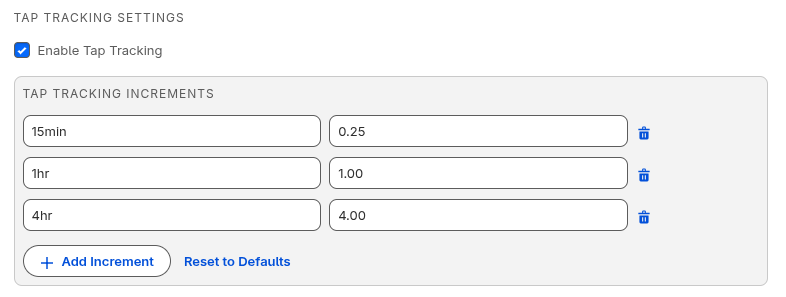
When Tap Tracking is enabled, you can configure the increment buttons:
Configuring Tap Increments
Use the increment manager to define your quick-add buttons. Each button has:
- Label: The text displayed on the button (e.g., “15m”, “1h”, “2h”)
- Hours: The decimal hours added when clicked (e.g., 0.25, 1.0, 2.0)
Common configurations:
- Quick increments: 15m (0.25), 30m (0.5), 1h (1.0)
- Meeting-based: 30m (0.5), 1h (1.0), 2h (2.0)
- Task-based: 1h (1.0), 2h (2.0), 4h (4.0)
Restore Defaults
Click Restore Defaults to reset all settings to your organization’s default values. This does not automatically save—click Save to apply the restored defaults.
Saving Settings
- Click Save to apply your changes and close the modal
- Click Cancel to discard changes and close the modal
- Save is disabled until you make a change

