
A snapshot records every assignment and forecast on a record as it stands. Take one before a big change, compare the plan against it later, or put the plan back exactly as it was. Snapshots work on RH Projects and Opportunities.
Snapshots is a tab in the RH Toolkit. Open an RH Project or Opportunity, click RH Toolkit, and select Snapshots.

The snapshot list
The list shows the record’s snapshots, newest first, with the hours each one holds and who took it. Click a snapshot’s name to open its record.
The Status column shows Active for an RH Project’s comparison snapshot, Kept for a snapshot marked Keep Forever, and Copying… while a large snapshot is still being taken. The Purges on column shows the night the snapshot will be deleted by the automatic purge, or Kept, Active, or Never.
Each row’s Actions menu holds Set as active, Keep forever, Compare with current…, Restore forecasts…, and Delete…. Select several rows to keep or delete them together.
Take a snapshot
- Click New snapshot.
- Enter a Name. It defaults to the record name and today’s date, for example “Acme ERP Rollout 2026-10-29”.
- Optionally, enter a Description.
- On an RH Project, select Set as the active comparison snapshot to make the project’s variance fields measure against it.
- Select Keep forever if the snapshot should never be deleted.
- Click Create snapshot.
A snapshot copies every assignment, with its resource, role, and rate, and every forecast. Actual hours are not copied. It also records the record’s totals and its RH Last Reconcile Date.
You do not always need to take one by hand. Each tool offers to take a snapshot before it applies a change. See How a change works.
If the record’s rollups are still being updated after a recent change, the toolkit says so and asks you to try again after the hourly rollup job runs.
Compare with the current plan
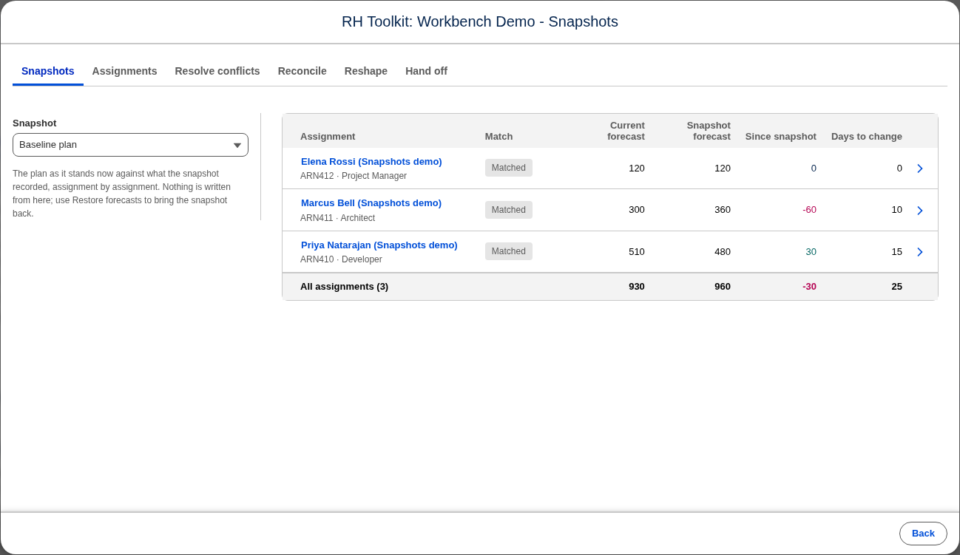
Select Compare with current… from a snapshot’s Actions menu. Each assignment is listed with its Current forecast, its Snapshot forecast, and the difference Since snapshot. Click an assignment to compare it day by day. Compare writes nothing. Click Back to return to the list.
Restore a snapshot
Select Restore forecasts… from a snapshot’s Actions menu. The review looks like Compare and shows what the restore will change on each assignment. Forecast hours go back to what the snapshot recorded, date by date. Dates the snapshot did not have are cleared. Actual hours are never changed.
The review has these options:
- From Date: leave it blank to restore every date. Set a date to keep the reconciled past and restore only the plan from that date on.
- Recreate assignments that were deleted after the snapshot: brings back assignments that no longer exist.
- Clear forecasts on assignments added after the snapshot: clears the forecast on assignments that were not in the snapshot.
Clear Include on any assignment you want to leave alone. Archived assignments are not restored until you unarchive them.
A restore takes a snapshot of the current plan first, just as Apply does in the other tools. Check the snapshot sentence in the footer, then click Restore. The record’s RH Last Reconcile Date also goes back to the value the snapshot recorded.
Keep a snapshot forever
Select Keep forever from a snapshot’s Actions menu. A kept snapshot cannot be deleted by anyone, or by the automatic purge, until you select Stop keeping.
Every snapshot that existed before Keep Forever was added is marked Keep Forever.
Delete a snapshot
Select Delete… from a snapshot’s Actions menu and confirm. Deleting a snapshot cannot be undone. The active snapshot and kept snapshots cannot be deleted. Large snapshots are deleted in the background.
Purge old snapshots automatically
Snapshots are kept until they are deleted. To delete old snapshots every night, set Snapshot Purge After Days in RHA Settings:
- From Setup, enter
Custom Settingsin Quick Find, then select Custom Settings. - Click Manage next to RHA Settings.
- Click Edit on the default organization level value.
- Enter the number of days in Snapshot Purge After Days, for example
180. - Click Save.
The purge runs nightly. It never deletes an RH Project’s active snapshot or a snapshot marked Keep Forever. Leave the setting blank to keep every snapshot. The top of the Snapshots tab says whether the purge is on.
Snapshots on other objects
Snapshots are available on RH Projects and Opportunities out of the box. Only an RH Project can have an active comparison snapshot. On an Opportunity, Keep Forever is the only way to protect a snapshot from the purge. An administrator can turn on snapshots for another Resource Hero object by adding a lookup to that object on the Snapshot object.

