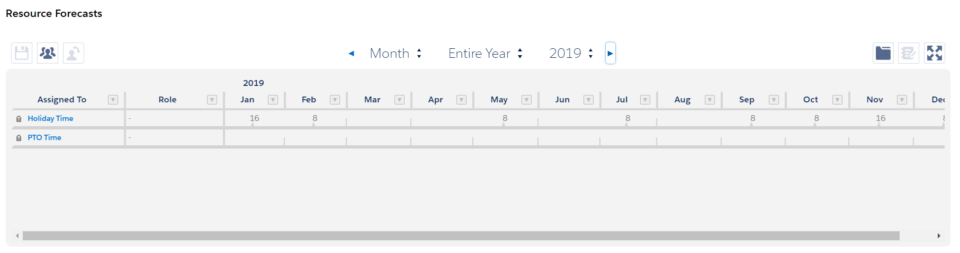
In the v14.3 release, the legacy Holiday Schedule process outlined below has been replaced with the more modern and feature-rich Enhanced Holiday Schedules.
Differences between the two models and a migration path is outlined in Legacy vs. Enhanced Holiday Schedule Model.
As of v14.3, clearing the legacy Holiday Schedule field on a Resource record now removes ALL legacy holiday forecasts for that resource, including past forecasts. Previously, only future forecasts were removed. This ensures a clean transition when migrating to the enhanced model.
Holiday Schedules allow you to define company-wide holidays and then easily assign those holidays to your Resources. Schedules can be defined for the entire company or groups within the company (Full time vs part-time, France vs the UK, etc).
Before you begin
Before you can set up Holiday Schedules, Holidays and assign schedules to your Resources, you must have access to the related objects and fields. Update your existing profiles or permission sets, or grant access by assigning your users the Resource Hero – Holiday Administrator permission set that is provided as part of the Resource Hero installation.
Setting up Holiday Schedules
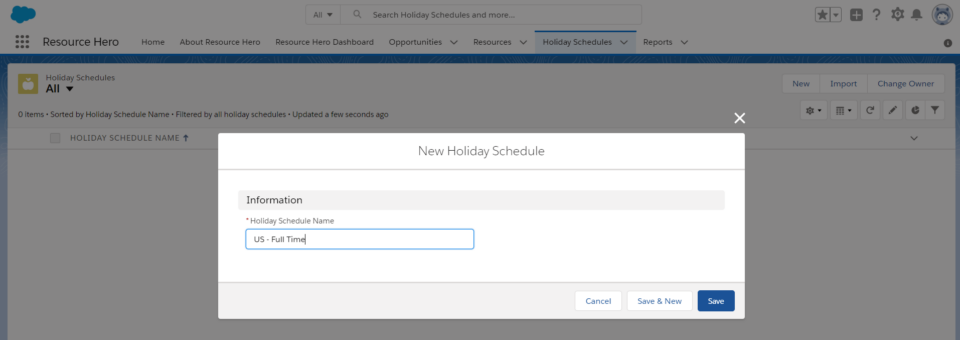
From the Holiday Schedules tab, click New and give your schedule a name, for example, “US – Full Time”, then click Save.
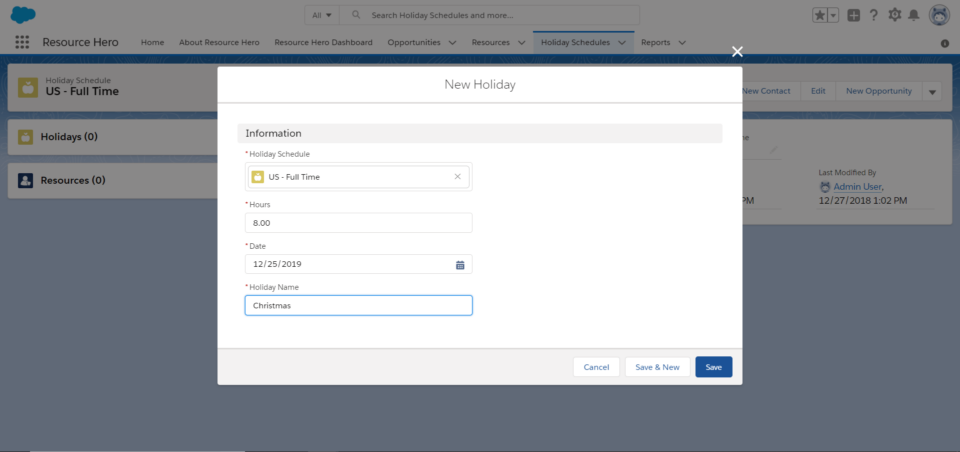
Once your schedule is created, you can add individual holidays by clicking New on the Holidays related list. Add details for the number of hours, the date, and the name of the holiday, then click Save.
Repeat this process for any additional holidays.
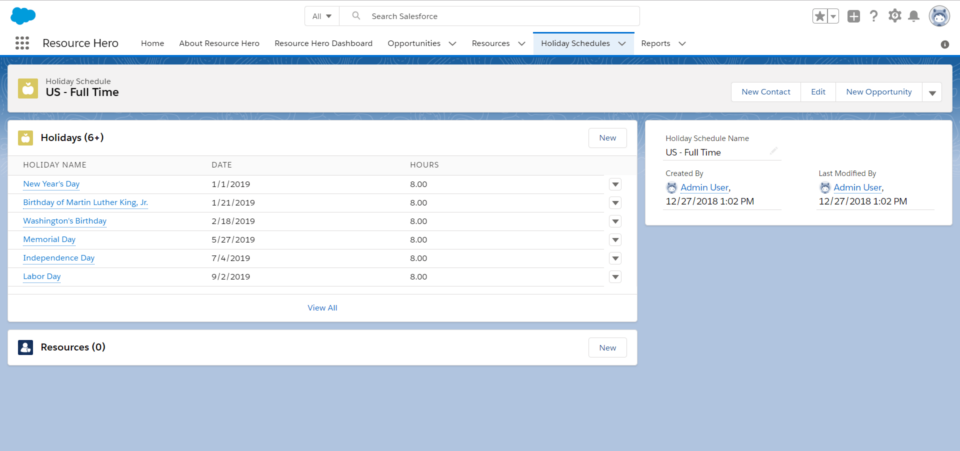
You can now assign this schedule to your Resources.
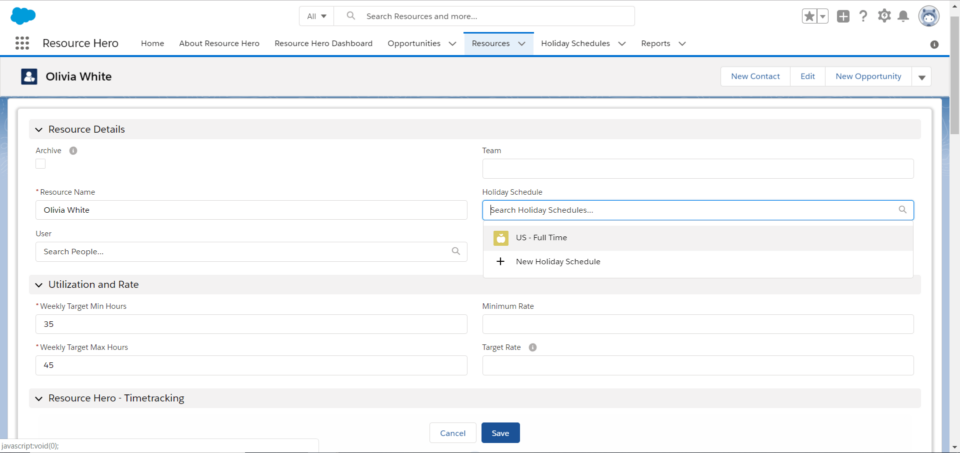
Holidays will now be reflected on the Resource’s timesheet automatically.