
The Enhanced Holiday Schedule model represents a significant improvement over the legacy approach. The information below provides a detailed comparison to help you understand the differences and plan your transition.
At a Glance
| Legacy Model | Enhanced Model | |
|---|---|---|
| Assignment Method | Direct field on Resource record | Separate Holiday Schedule Assignment object |
| Schedules per Resource | One schedule only | Multiple schedules supported |
| Date Range Control | None – all holidays applied | Precise start/end date control |
| Schedule Changes | Requires updating Resource record | Create new Assignment, adjust date ranges |
| Regional Flexibility | Limited – one schedule covers all | Full support for regional + global combinations |
| Bulk Processing | Synchronous only | Async processing with status tracking |
Detailed Comparison
Assignment Flexibility
Legacy Model:
- A resource could only have one holiday schedule assigned via a lookup field on the Resource record
- Changing schedules required editing the Resource record directly
- No way to have different schedules apply at different times
Enhanced Model:
- Resources have a related list of Holiday Schedule Assignments
- Each assignment specifies which schedule applies and for what date range
- Multiple assignments can be active simultaneously (e.g., Global + Regional)
- Schedule transitions are handled by adjusting assignment date ranges
Date Range Control
Legacy Model:
- All holidays in the assigned schedule applied to the resource
- No way to limit which holidays affected a resource
- Past and future holidays all created forecasts
Enhanced Model:
- Each assignment has explicit Start Date and End Date fields
- Only holidays within the date range create forecast records
- Easy to set up year-bounded assignments (e.g., 2025 only)
- Changing date ranges automatically adds or removes forecasts as needed
Regional and Multi-Schedule Support
Legacy Model:
- Organizations needed to create consolidated schedules for each unique combination
- A resource in the US office working on a global team might miss company-wide holidays or have incorrect regional holidays
- Complex to manage when resources move between regions
Enhanced Model:
- Create focused, single-purpose schedules (US Holidays, UK Holidays, Global Company Holidays)
- Assign multiple schedules to each resource as needed
- Handle transfers by adjusting assignment date ranges
- Clean separation between regional and company-wide holidays
Processing and Performance
Legacy Model:
- All processing was synchronous
- Large-scale schedule changes could timeout or hit limits
- No visibility into processing status
Enhanced Model:
- Intelligent async processing for bulk operations
- Automatic chunking based on workload size
- Status field shows when processing is complete
- Self-healing batch operations for very large volumes
Forecast Independence
The legacy and enhanced holiday schedule models maintain completely independent forecasts and actions on one model do not affect the other.
When you clear the Holiday Schedule lookup field on a Resource record, only the forecasts created by that legacy assignment are removed. Any forecasts created by Holiday Schedule Assignments (HSAs) remain intact.
As of v14.3, clearing the legacy Holiday Schedule field on a Resource record now removes ALL legacy holiday forecasts for that resource, including past forecasts. Previously, only future forecasts were removed. This ensures a clean transition when migrating to the enhanced model.
When you delete an HSA record, only the forecasts linked to that specific HSA are removed. Legacy forecasts (from the Resource’s Holiday Schedule field) are preserved.
This independence makes migration straightforward: you can safely create new HSAs before clearing the legacy field, knowing that your HSA forecasts won’t be affected when you complete the migration.
Migration Considerations
Organizations transitioning from the legacy model should:
- Identify current schedule assignments on Resource records
- Create corresponding Holiday Schedule Assignments with appropriate date ranges
- Test with a small group of resources before bulk migration
- Clear legacy field values after confirming new assignments work correctly
Migration Steps
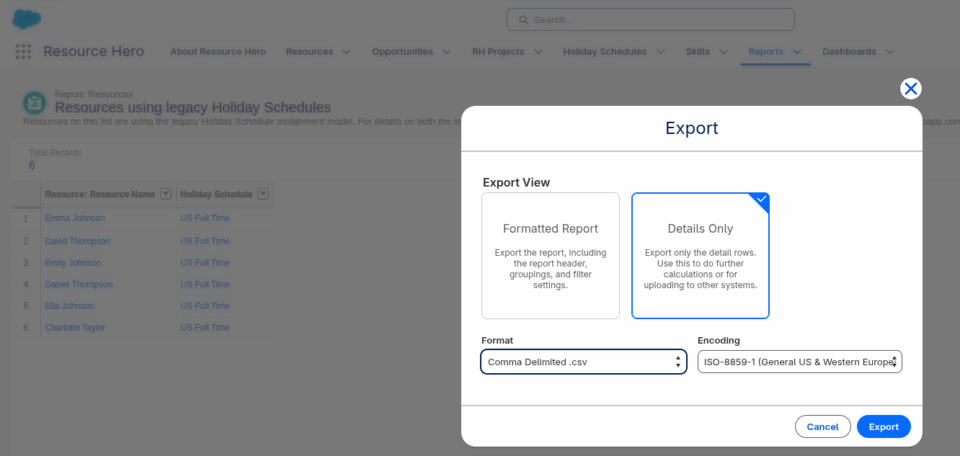
Step 1: View and Export impacted Resources
From within the Resource Hero Admin Reports report folder, run and export the Resources using legacy Holiday Schedules report as a CSV file. Resources on this report are still assigned a Holiday Schedule at the Resource level.
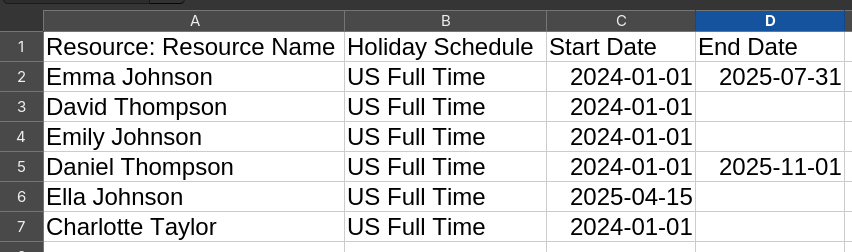
Step 2: Plan Date Ranges
Edit the CSV file and add columns for Start Date and End Date, then add dates for each Resource
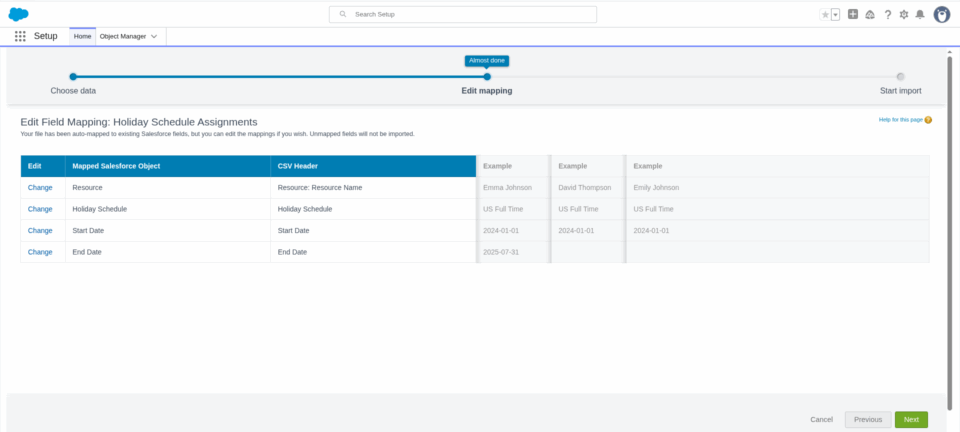
Step 3: Create New Holiday Schedule Assignments
Use the updated CSV file to bulk create Holiday Schedule Assignment records:
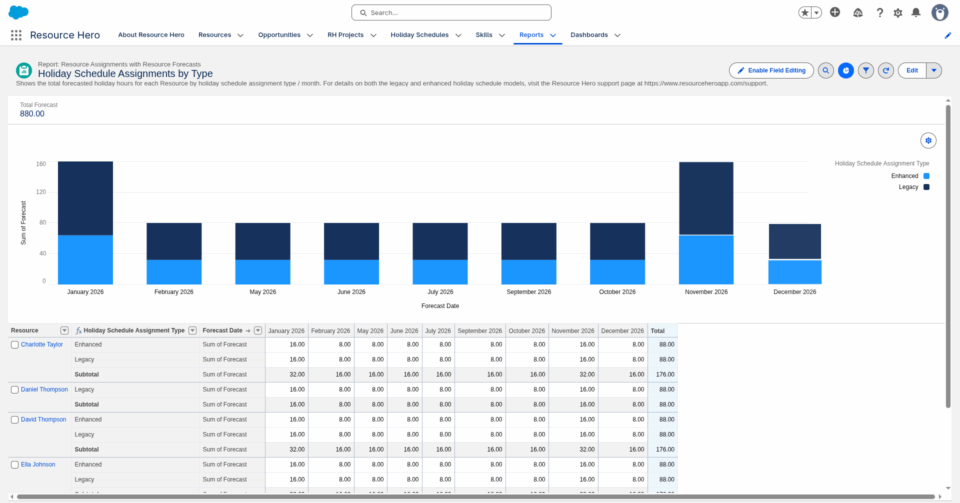
Step 4: Verify
From within the Resource Hero Admin Reports report folder, run the Holiday Schedule Assignments by Type report and confirm that the load was successful. At this step, hours may be shown in both the Enhanced type (hours that you just loaded) and the Legacy type (hours that we will remove in the next step).
Step 5: Clean Up
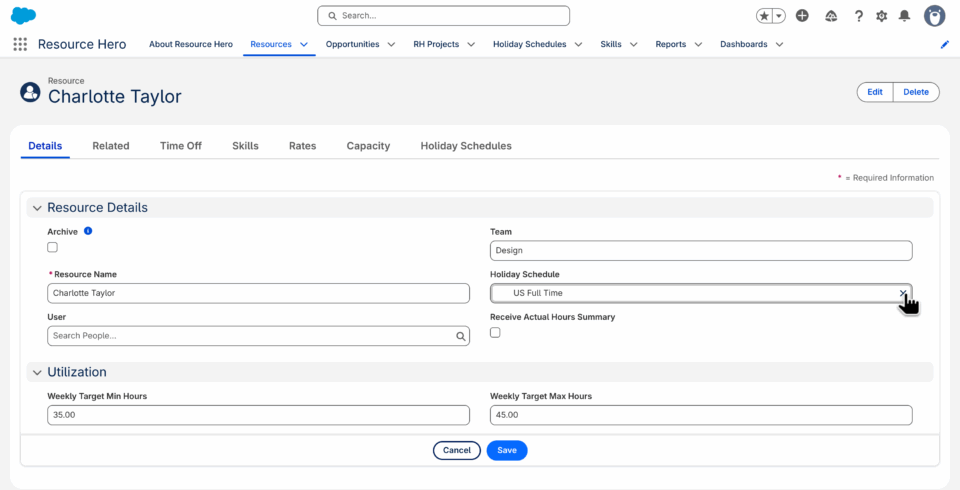
Now that the new Holiday Schedule Assignments are in place, you can remove the legacy assignment. This can be done by clearing the Holiday Schedule field on Resource’s detail page, then click Save.
Step 6: Verify
After clearing the Holiday Schedule field from Resources, re-run the Holiday Schedule Assignments by Type report and confirm that the legacy records are removed.
Important: Avoid Using Both Models Simultaneously
The legacy Holiday Schedule field on Resource records and the new Holiday Schedule Assignment model operate independently. If a resource has both a legacy schedule assignment AND one or more Holiday Schedule Assignments, duplicate forecast records may be created for the same holidays.
Choose one model per resource. If you are migrating to the Enhanced model, clear the legacy Holiday Schedule field on the Resource record after creating the corresponding Holiday Schedule Assignment.

