
When onboarding many resources or setting up holiday schedules for the first time, you can load both Holidays and Holiday Schedule Assignments in bulk using Salesforce’s Data Import Wizard.
Loading Holidays in Bulk
For schedules with many holidays, holiday records can be loaded in bulk:
- Prepare a CSV file with columns: Name, Date, Hours, Holiday Schedule
- From Setup, enter Data Import Wizard from the quick find search on the left, then click on Data Import Wizard
- Click the Launch Wizard button
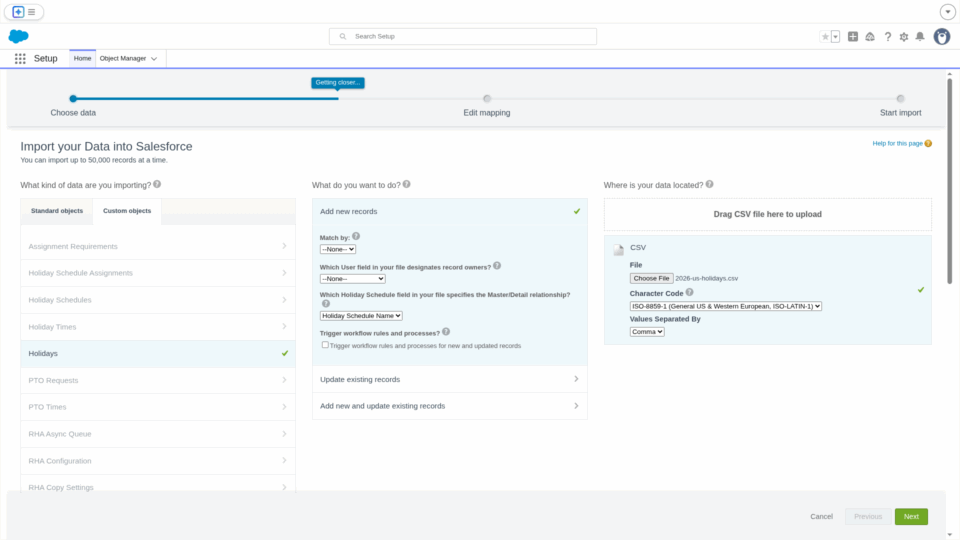
- Choose data:
- From the What kind of data are you importing section, select the Custom Objects tab, then select Holiday from the list
- In the What do you want to do section, make sure that the Which Holiday Schedule field in your file specifies the Master/Detail relationship is set to Holiday Schedule Name
- In the Where is your data located section, select your prepared CSV file
- Click the Next button
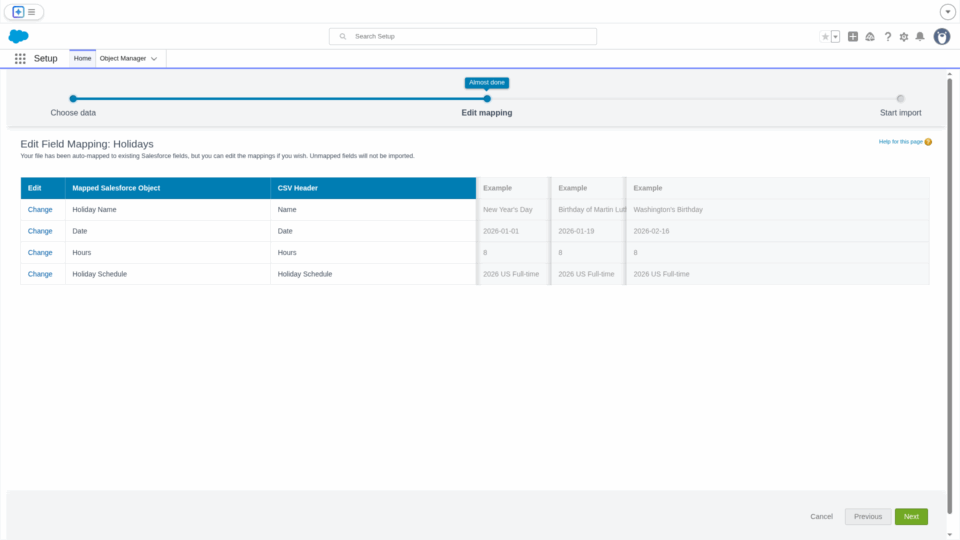
- Edit Mapping
- If your CSV file was created using the column headers listed above, all fields should be mapped
- Update any mappings, if needed, then click the Next button
- On the Review & Start Import screen, review the details of the import, then click the Start Import button
- You will receive confirmation that your import has started.
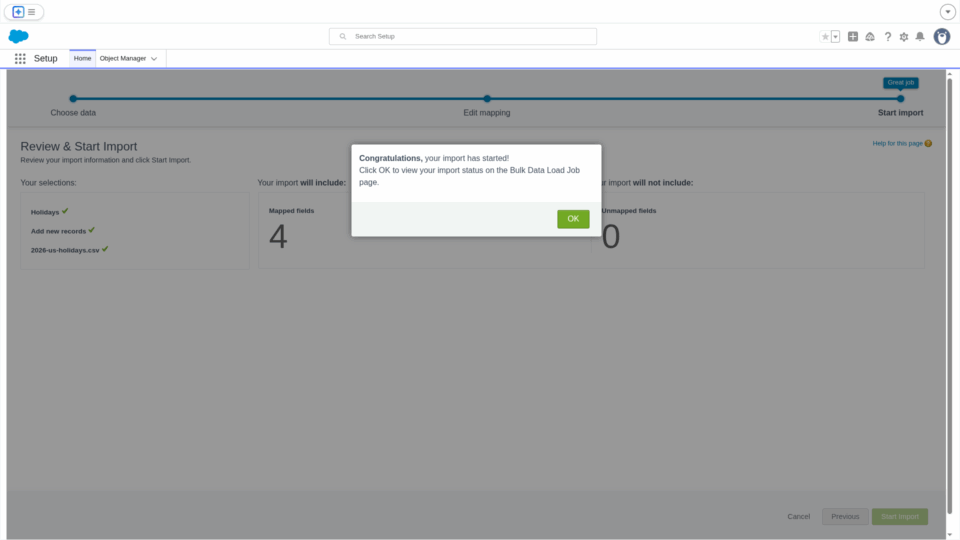
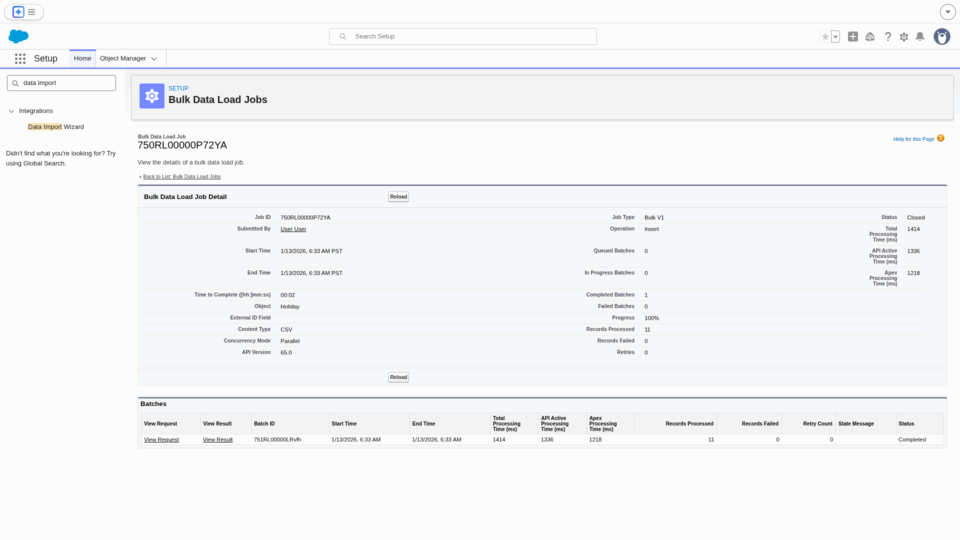
- Click the Ok button to view the import status
- Once the import has completed, the Progress field will show 100% and your records should be available.
Loading Holiday Schedule Assignments in Bulk
When onboarding many resources or setting up a new region, holiday schedule assignments can be loaded in bulk:
- Prepare a CSV file with columns: Resource, Holiday Schedule, Start Date, End Date
- Choose data:
- From the What kind of data are you importing section, select the Custom Objects tab, then select Holiday Schedule Assignments from the list
- In the What do you want to do section:
- Select Holiday Schedule Name from the Which Holiday Schedule field in your file specifies the Master/Detail relationship picklist
- Select Resource Name from the Which Resource field in your file do you want to match against to set the Resource lookup field picklist
Follow the remaining steps as outlined in the Loading Holidays in Bulk section above.
Asynchronous Processing
When you create or update a single Holiday Schedule Assignment, the system processes it immediately – forecast records are created before the page refreshes, and no status tracking is needed.
However, when loading assignments in bulk, the system uses intelligent background processing to handle large volumes efficiently. Asynchronous background processing will occur when multiple Holiday Schedule Assignments are created or updated in a single transaction or the combined workload exceeds what can be processed synchronously.
In these scenarios, the Holiday Schedule Assignment object‘s Async Job Status field becomes relevant and will populate with the status of the asynchronous operation.

