
Time Off Requests allow your resources to log hours for vacations, sick time and other types of non-billable work.
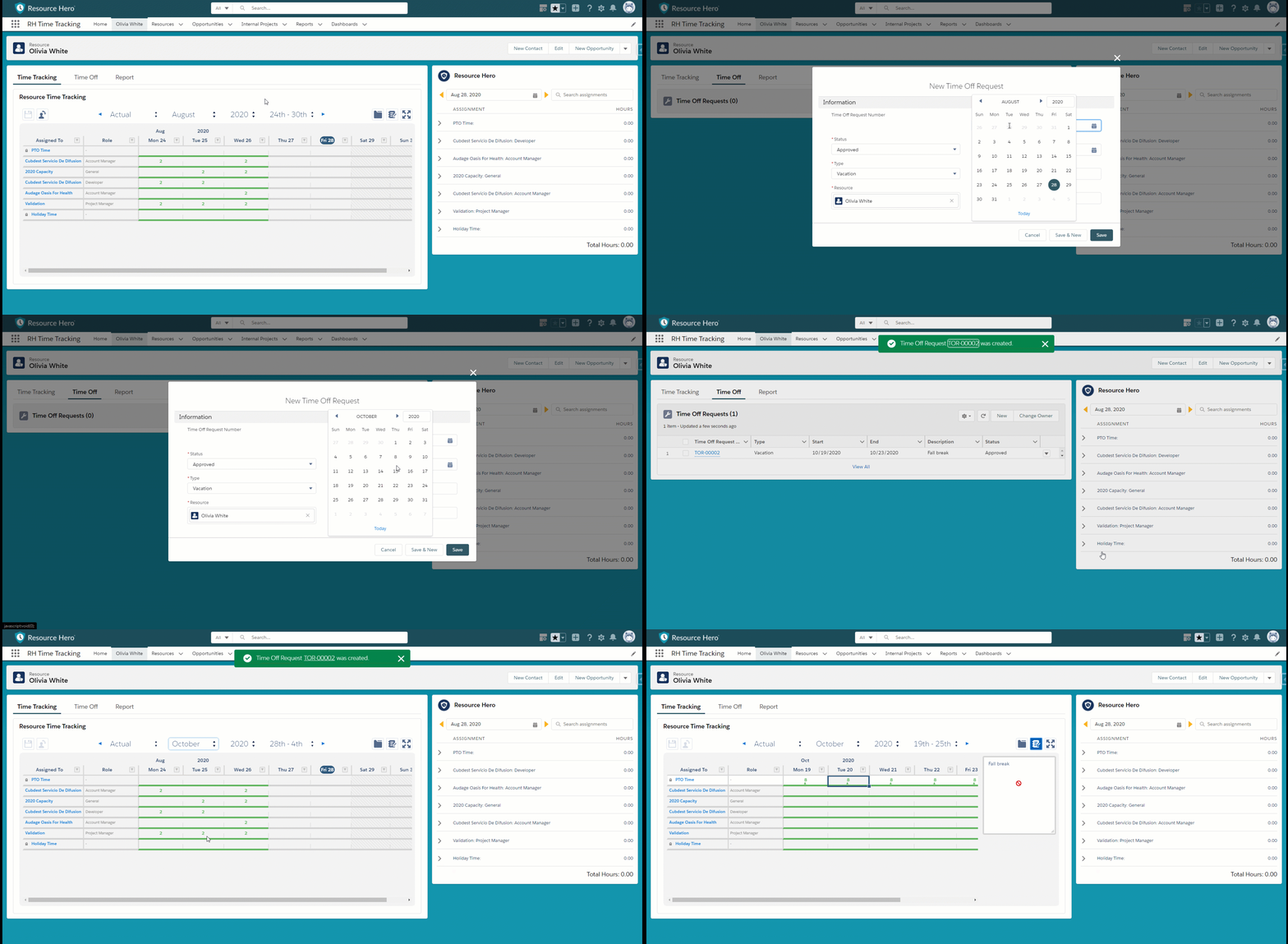
Submitting new requests
- From the Resource detail page, click New on the Time Off Requests related list.
- After filling in all details, click Save.
Status Field
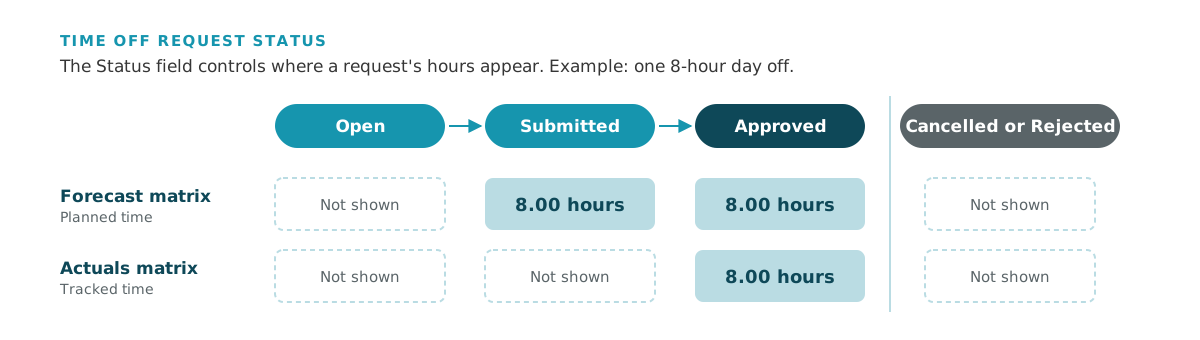
The Status field controls where hours will be displayed:
- Open – hours will not be shown on either the Forecast or Actuals matrix.
- Submitted – hours will be displayed in the Forecast matrix for the resource.
- Approved – hours will be displayed on both the Forecast and Actuals matrix.
- Cancelled or Rejected – hours will not be shown on either the Forecast or Actuals matrix.
How Time Off Requests differ from PTO Requests
Time Off Requests are built on top of the existing PTO Request functionality with a few added benefits:
- Resources can submit a block of days within the same request.
- Requests are not related to the Resource via a master-detail relationship. This means that security for requests can be managed independently from the Resource and allows requests to be visible only to the requester but hidden from anyone who otherwise might have read access to the parent Resource record.
Data Model
To see how the objects on this page relate to each other, view Data Model: Time Off and Capacity.

