
Blog
Locking Idle Salesforce Orgs Behind 1Password
As a Salesforce ISV, we connect to a lot of orgs: our own production org, our packaging org, our Dev Hub, sandboxes, scratch orgs and, most importantly, customer orgs. The Salesforce CLI (sf) makes hopping between them easy. Sometimes too easy.
One typo in sf project deploy start --target-org can push code into the wrong org. If that org is one of ours, it costs us an afternoon. If it belongs to a customer, it is a real problem.
So we built a small guardrail. Any customer org we are not actively working in stays locked, and the CLI cannot reach it until we unlock it through 1Password. The scripts are free and open source on GitHub.
What we wanted
We had three requirements:
- No changes inside the customer org. We can’t ask a customer to install a connected app or change their security settings to suit our workflow.
- No new infrastructure. No server, no new service to run and maintain.
- A real act of intent. An “are you sure?” prompt gets answered on autopilot. We wanted a step that takes a deliberate action, like a password, a security key or a fingerprint.
How the lock works
When you run sf org login web, the CLI saves that org’s login in a file under ~/.sfdx/, one file per username. A separate alias.json maps your aliases to those usernames.
In our experience, that one file is what lets the CLI reach the org. If the file is there, the CLI can use the org. If it isn’t, every command against that org fails with an authorization error before any API call is made. We have not read all of the CLI’s source, so treat this as what we have seen on our machines, not a Salesforce specification. Across every org we have locked, it has held.
That gives us a simple lock: move the file somewhere that needs a real unlock to get it back.
Why 1Password
We put the file in a dedicated 1Password vault. The 1Password CLI (op) works through the 1Password desktop app, so reading an item triggers the same unlock you use for everything else in 1Password: your system password, a YubiKey touch, Touch ID or Windows Hello.
Could we just move the file into another folder the CLI doesn’t look in? Maybe. But with AI coding agents searching through files on our machines every day, we would rather a customer org’s login not sit anywhere on the drive in readable form.
The four scripts
The repo holds four short bash scripts:
sf-lock <alias>uploads the org’s login file to 1Password, deletes the local copy and removes the alias, so the org disappears fromsf org list. It also records the org in a small local list of locked orgs.sf-unlock <alias>pulls the file back from 1Password and restores the alias. This is the step that asks for your 1Password unlock. If you cancel, nothing is written.sf-orgsruns the normalsf org listand then lists your locked orgs below it.sf-lock-test <alias>checks your 1Password setup with a round trip to the vault without touching anysfstate. Run it once before you trust the scripts with a real org.
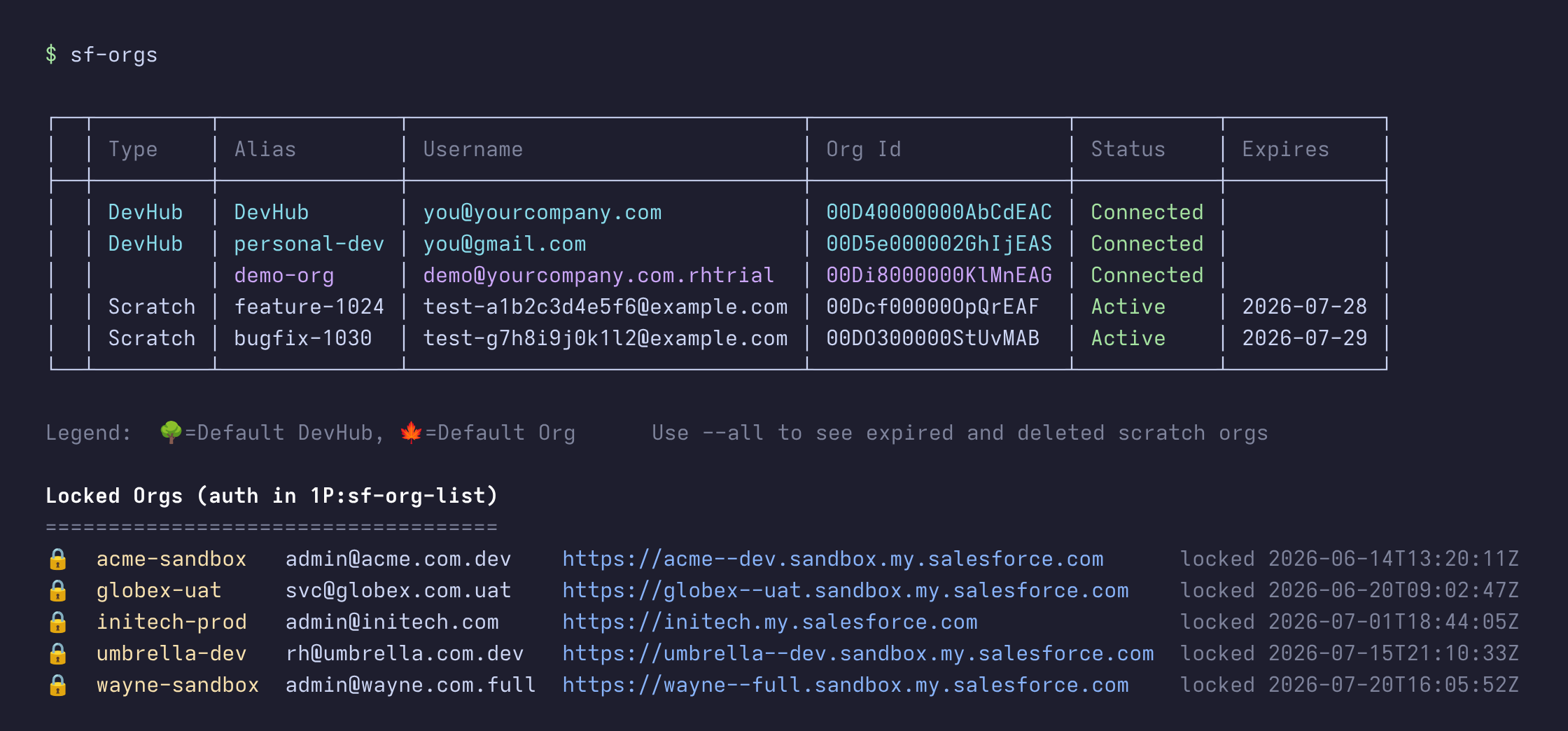
A normal week with a locked org
- Log in and do the work. You log in to a customer sandbox the usual way with
sf org login web --alias AcmeSandbox, make your changes and tell the customer it is ready for review. - Lock it while you wait. The customer may take days to reply, so you run
sf-lock AcmeSandbox. The org is now out of reach. - Work everywhere else. You spend the week in internal orgs, scratch orgs and other customers’ sandboxes. A typo in
--target-orgcan’t land in Acme’s sandbox, because the CLI has no way in. - Unlock when they reply. Feedback arrives, you run
sf-unlock AcmeSandbox, complete the 1Password prompt and pick up where you left off. - Lock it again. When the round of work is done,
sf-lock AcmeSandboxcloses it back up.
Orgs stay locked by default and only open for the short windows when you are working in them, and only after a deliberate unlock.
What it does and does not protect against
This is a guard against accidents, not attackers.
It catches a mistyped --target-org, a stale default org left over from an earlier task, and tab-completion or muscle-memory slips. In each case the login file is gone, so the command fails before it touches the org.
It does not stop someone who already controls your machine, someone who has your 1Password account, or anyone who can complete the unlock. The protection is one moment of deliberate intent between you and the customer org, and that moment is what catches the accident.
Get the scripts
The full write-up, setup steps and source are on GitHub: wkuehler/sf-org-lock. You need:
- The Salesforce CLI, logged in to at least one org
- The 1Password CLI, signed in
jq- A 1Password vault named
sf-org-list
We built and run it on Linux. It should work on macOS with small changes.
Wrapping up
Nothing here is groundbreaking: four short bash scripts and a 1Password vault. But it removed a worry we carried every day, the fear of deploying to the wrong customer org. We would like to hear from you if you know a cleaner way to do any part of it or build something better on top of it. Take it, change it and make it your own.

