
Resource Hero now works in Claude, the AI assistant from Anthropic. Ask Claude for your time dashboard and you get a live, interactive page of your own: tap to log time, start a timer, click a day to log to it, and request time off. Every change saves straight to Resource Hero in Salesforce, so it’s the same time you see in RH Time Tracking and the RH Matrix. Or skip the page and just ask: “Log 2 hours to Acme today.”
Resource Hero for Claude is available now in early access, and the teams who try it first help decide what we build next.
Available now. Your Salesforce admin sets it up once for your org, in about 30 minutes: Set Up Resource Hero for Claude. Want a hand? Book a walkthrough and we’ll go through setup and your first dashboard with you.
Log Time, Run Timers and Plan Your Week in One Place
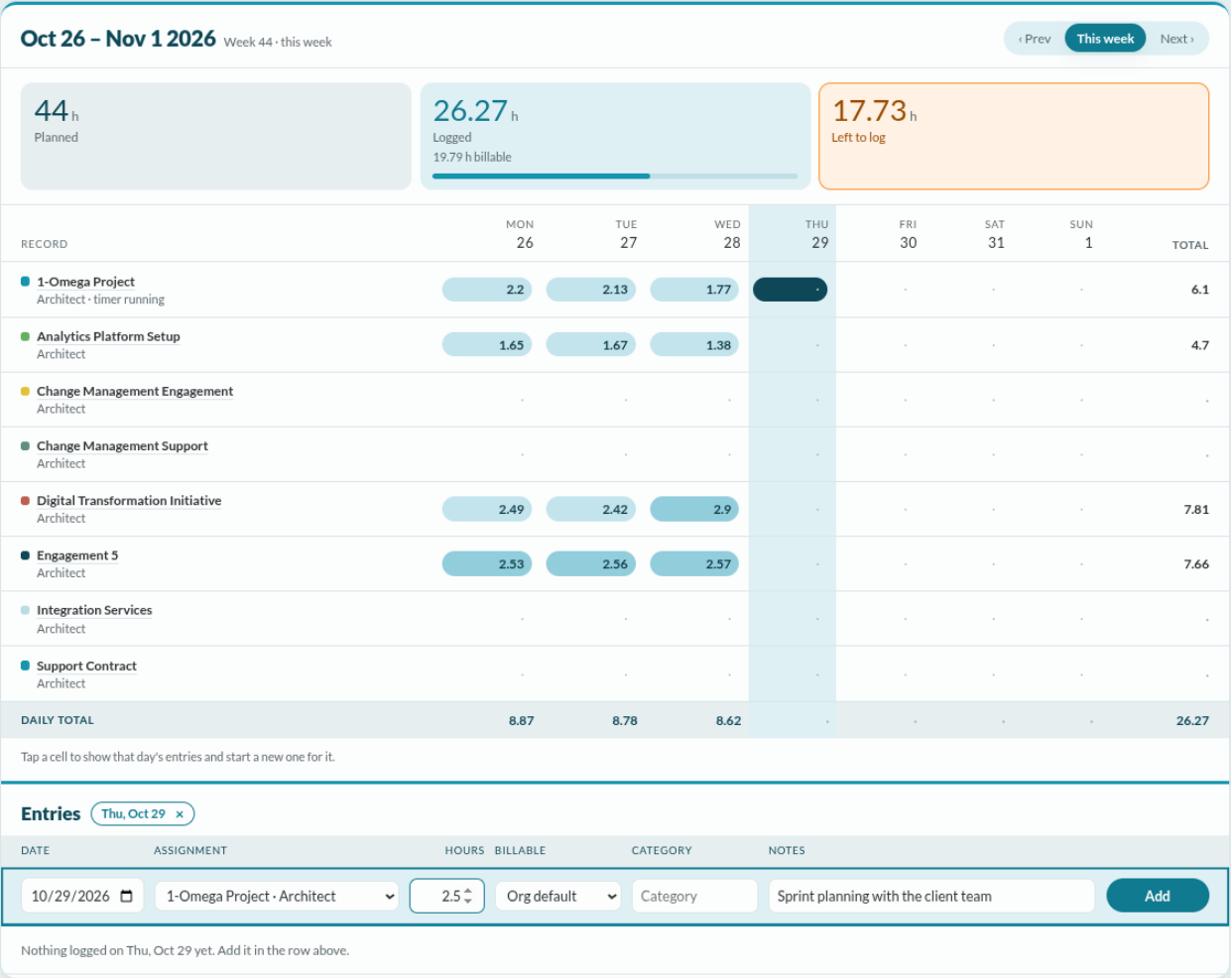
Ask Claude to “build me my Resource Hero time dashboard” and it publishes a private page, My time and timers. It pulls your time from Salesforce when it opens and again after every change, so what you see is what’s in Resource Hero.
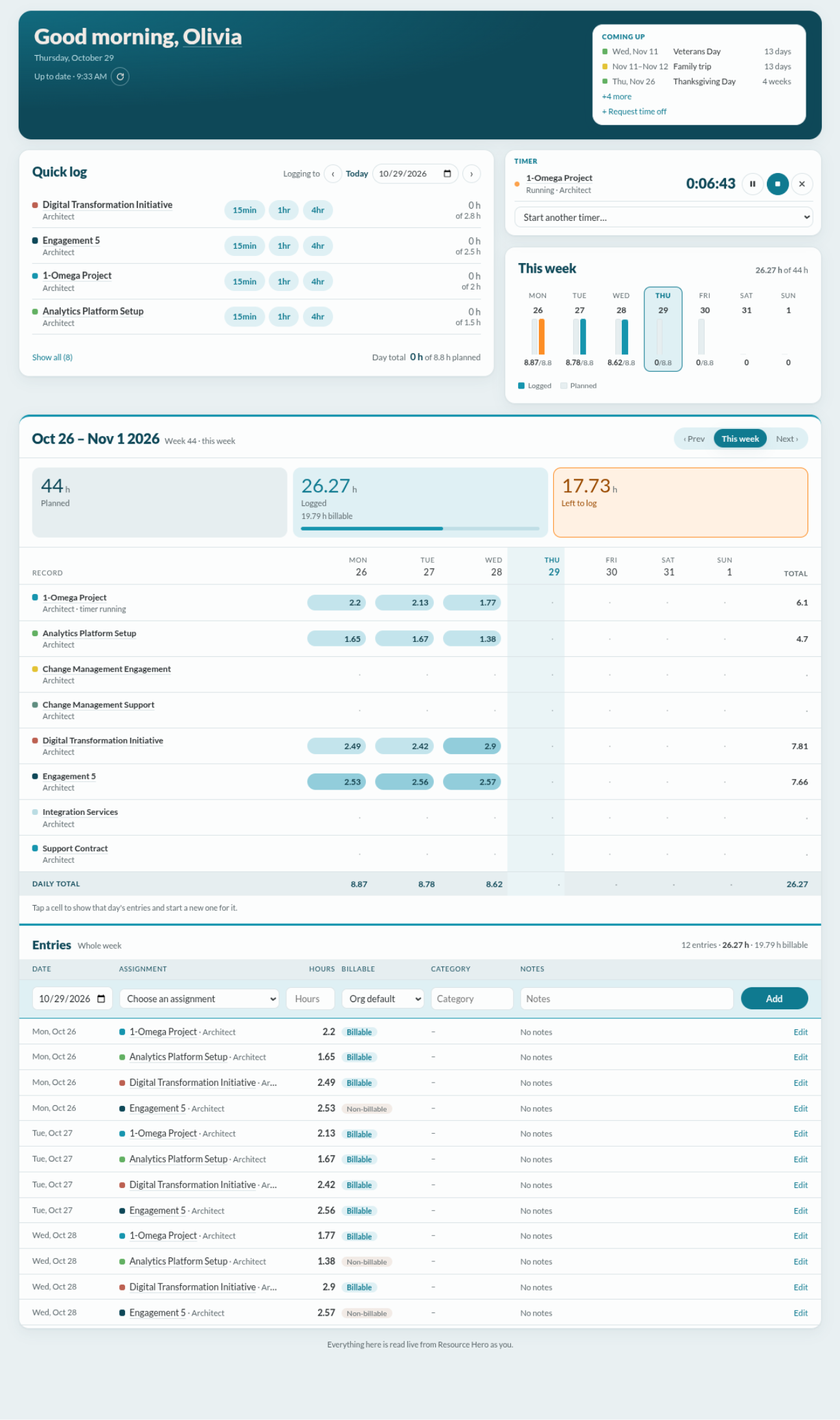
- Tap to log time: Quick log has your own increments, such as 15min, 1hr or 4hr, on each assignment. Taps add up and save as one entry, with an Undo right after.
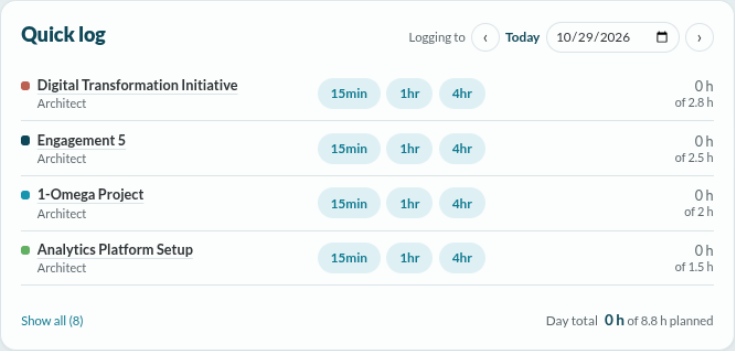
- Start a timer: pick an assignment and watch it run. Starting a new one pauses the running timer.
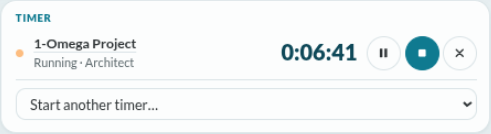
- Click a day: the week strip shows one bar per day, hours logged against hours planned. Click a day to make it the day Quick log logs to.
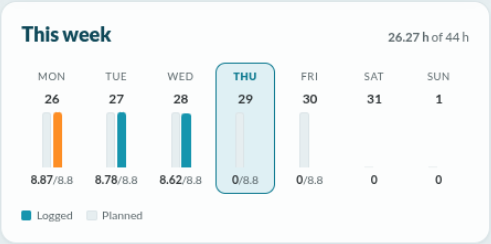
- Edit in place: the week view shows planned, logged and left-to-log hours, a grid of your hours by assignment and day, and every entry, which you can add to, edit or delete. Names link to the records in Salesforce.
- See what’s coming up: your next holidays and time off. Click + Request time off to ask for days off, and Cancel on a request that hasn’t been approved yet.
Make It Your Own
The dashboard is a working example of what you can build. Ask Claude to change it, such as “remove the timer” or “add my utilization by week”. Or have Claude build the view you want from your own assignments, time, forecast and time off:
- “Show my planned and logged hours by project for this month.”
- “Build me a view of my next four weeks of assignments and time off.”
If you share a page, everyone who opens it sees their own time, not yours.
Or Just Ask
Ask Claude in plain language, no dashboard needed:
- “What am I assigned to?”
- “Log 2 hours to Acme Implementation today, notes: design review.”
- “I worked 6 hours on the Smith project yesterday, 4 of them billable.”
- “What did I log this week?” or “Change row 2 to 1.5 hours.”
- “Start a timer on Acme.” or “Stop my timer and log it.”
- “What am I scheduled for next week?” or “When do I have time free this month?”
- “Request next Friday off, 8 hours, vacation.”
Claude shows what it’s about to save and waits for your yes before it logs, changes or deletes time, or requests time off.
Get It Now
Your Salesforce admin sets up Resource Hero for Claude once for your org (see Set Up Resource Hero for Claude). Then connect Claude:
Resource Hero for Claude is in early access. While we work on getting it live on the AppExchange, a future version may ask your admin to uninstall and reinstall the Resource Hero MCP extension. Your time and time off are not affected.
Claude on the Web or Desktop
- In Claude, open Settings → Connectors. If Resource Hero is listed, click Connect. If not, add a custom connector named “Resource Hero” with the server URL and consumer key your admin sends you.
- Sign in with your Salesforce login.
- To add the Resource Hero plugin, which teaches Claude to work with Resource Hero and builds the dashboard, open Customize → Plugins, click Add, select Add marketplace, and enter
https://github.com/Resource-Hero/rh-agent-toolkit. Then install rh-user. Your organization may have installed it for you already.
Claude Code
Run these in Claude Code, using the consumer key and server URL from your admin:
/plugin marketplace add Resource-Hero/rh-agent-toolkit
/plugin install rh-user@resource-hero
! claude mcp add --transport http --scope user --client-id <consumer key> --callback-port 8765 resource-hero <server URL>
Then run /mcp, select resource-hero, and sign in with your Salesforce login.
The full steps are in the user guide on GitHub.
Good to Know
- Claude works as you. It sees only your own assignments and time, and your org’s sharing, field security, validation rules and flows apply as they do in Resource Hero.
- A Resource Hero license is required. Every request checks your Resource Hero license first.
- Holidays and approved time off appear in your time but can’t be changed through Claude. Read-only and archived assignments show their hours but can’t take new time.
- Time off follows your org’s process. A request may be approved right away or wait for approval, and Claude tells you which. You can cancel a request until it’s approved.
- If Claude can’t reach Resource Hero, reconnect: in Claude open Settings → Connectors and connect Resource Hero again; in Claude Code run
/mcpand sign in again.
What’s Next
Early access is where we decide what comes next. Tell us what works, what doesn’t and what you’d want added, or show us what you built: email [email protected] or book a walkthrough.
Get Started
- Ask your Salesforce admin to set up Resource Hero for Claude.
- Connect Claude and ask “What am I assigned to?”
- Ask Claude to build your time dashboard.

